An enabled notification switch is only one part of receiving a useful ZINFO alert. The phone also controls where an alert appears and whether it makes a sound. The account determines which notification features are available. Checking those separately helps you describe a missing alert accurately and avoid changing unrelated settings.
This guide covers the permission and presentation checks for iPhone and Android, followed by an account check in ZINFO. Apple, Google, and ZINFO documentation was reviewed on October 6, 2026. Menu names and available controls can differ with the device, system version, and language.
1. Name the notification you expected
Start with one specific example. Was it a newly found fine, a reminder connected with a deadline, or simply an audible alert from the app? Write down when you expected it and where you looked. A missing banner, missing sound, and missing message are different observations.
ZINFO's fine reminder description says that availability depends on the selected plan and account. Turning on phone permission does not change those conditions. Receiving one notification also does not establish that every other reminder type is included.
Use three questions for the rest of the check: does the phone permit notifications from ZINFO; how will the phone present them; and is the particular feature available for this account? Keep a separate answer for each question.
2. Review the iPhone permission
Apple's notification troubleshooting instructions direct you to Settings, then Notifications, then the relevant app. Find ZINFO and inspect Allow Notifications. Change the setting only if you want notifications from the app.
Next, check the selected destinations: Lock Screen, Notification Center, and Banners. A notification may appear in Notification Center without producing the banner you expected while using another app. Sounds are a separate choice, so inspect that setting too.
Use the options actually shown on the device. Some Apple notification features are available only to supported apps. This guide does not establish that ZINFO supports Critical Alerts or another special notification mode. If the relevant page is missing, note the system version and consult the matching Apple instructions before assuming that a particular control should exist.
3. Check sound and Focus without losing your privacy choices
If the notification is visible but silent, inspect the phone's silent mode and volume first. Apple explains that notification sounds do not play when the device is silenced or the volume is turned down completely. That observation alone does not mean the app's notification permission was revoked.
Focus has its own notification rules. Open Settings, then Focus, and inspect the mode that was active when you expected the alert. Review its app choices before changing broader rules for the whole phone. The available exceptions depend on the selected Focus mode.
Notification content can also be hidden on the Lock Screen while alerts are otherwise permitted. You do not need to reveal private message contents to complete this check. If you use an Apple Watch, Apple's guidance also explains that notifications normally appear on either the watch or the iPhone according to device state. Looking at only one device can leave an incomplete picture.
4. Review Android app controls and available categories
Google's Android notification guide describes opening Settings, Notifications, and App notifications. Find ZINFO in the list. If the initial list shows only recent senders, select All apps when that option is available.
Inspect the app's overall notification setting, followed by any categories the phone actually displays. A category can be disabled or silent even when the overall app permission is enabled. Do not assume that every device will expose the same category names or that each advertised ZINFO feature has a separate Android category.
Google explicitly notes that these steps vary by device. Use the manufacturer's guidance if the menu differs. Notification history is also unavailable on some devices. An absent history screen or an empty list cannot, by itself, settle whether a particular notification was generated or delivered.
5. Check the ZINFO account and current offer
Return to ZINFO and confirm the signed-in account. Read the current plan and notification description, then check the particular feature you expected. A plan name alone is not enough to establish that every possible reminder is included.
For a vehicle-related alert, confirm the relevant vehicle profile as well. The multiple vehicle profile guide helps you connect a question with the intended car. If you manage several vehicles, identify the correct profile before contacting support.
Buying another plan is not a required troubleshooting step. First establish what the current account and offer include. Do not expect daily currency or fuel alerts merely because phone permission is on; rely on the features explicitly described for your account. This guide makes no promise about notification frequency or guaranteed delivery.
6. Keep a short record of what you confirmed
Record the phone model, system and app versions, permission state, relevant Focus or silent mode, notification type, and the time you expected it. Change one presentation setting at a time so you can tell what affected the result.
Permission enabled, feature available, and notification received are separate pieces of evidence. If the alert is still missing, explain those observations to support. Share only the information needed for the specific issue. A useful screenshot does not require a password, one-time code, or a complete personal document.
Check a fine's actual record directly when its status matters. A missing alert does not establish an empty or paid fine list. Use the guide to understanding an empty fine result if the uncertainty also concerns the search result itself.
Final checklist
- I can name the notification type I expected.
- I checked ZINFO's permission in the phone settings.
- I checked sound, display destination, and the relevant interruption mode separately.
- On Android, I reviewed only the categories actually available.
- I checked the account and current plan conditions.
- I did not treat an enabled switch as proof that a notification arrived.
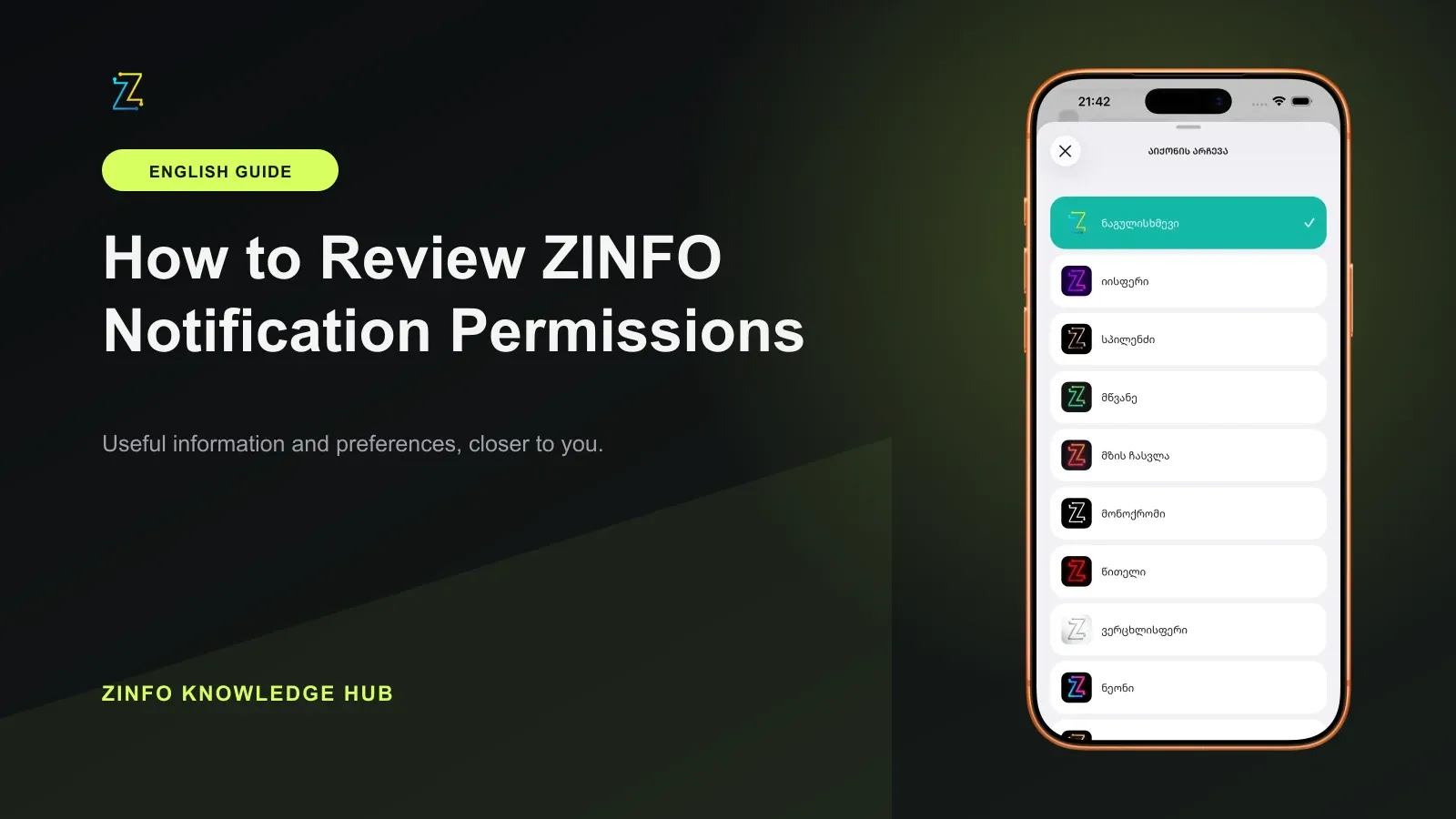
The illustration shows ZINFO's app icon selection screen as personalization context. Review notification controls in the phone's system settings described above. Visit the ZINFO knowledge hub for the related product workflows after completing this permission check.
Sources
- Widgets, personalization and optional plans · ZINFO · 2026-10-06
- Cars, fines and maintenance: fine reminders · ZINFO · 2026-10-06
- Use notifications on your iPhone or iPad · Apple Support · 2026-10-06
- If you do not receive notifications in the way that you want · Apple Support · 2026-10-06
- Control notifications on Android · Google Android Help · 2026-10-06