Opening an app should bring you closer to the information you need. If you keep looking for the same fuel choice, currency, city, or car, a small set of saved choices can make that routine easier. The useful starting point is a list of what you actually check during an ordinary week.
ZINFO's favorites and preferences support recurring choices across several areas. Each area has its own controls and conditions. This guide offers a practical way to decide what to keep, verify a change, and notice when yesterday's selection no longer fits today's task.
Start with a short routine
Write down the checks you repeat: the fuel you buy on your usual route, currencies you regularly use, the city relevant to your day, and the vehicle whose records you manage. Give each choice a reason to stay. Something you checked for a single trip may be useful temporarily without belonging in your everyday list.
For example, a person commuting in Tbilisi might keep their usual fuel choice and vehicle close, while checking another city's weather for a weekend visit. This is an example of organizing a routine, not a preset that ZINFO applies automatically. Review the selected city again when the visit ends.
Keep the list short enough to recognize mistakes at a glance. There is no recommended account limit in this guide and no requirement to fill every available slot.
Save a fuel choice with its context
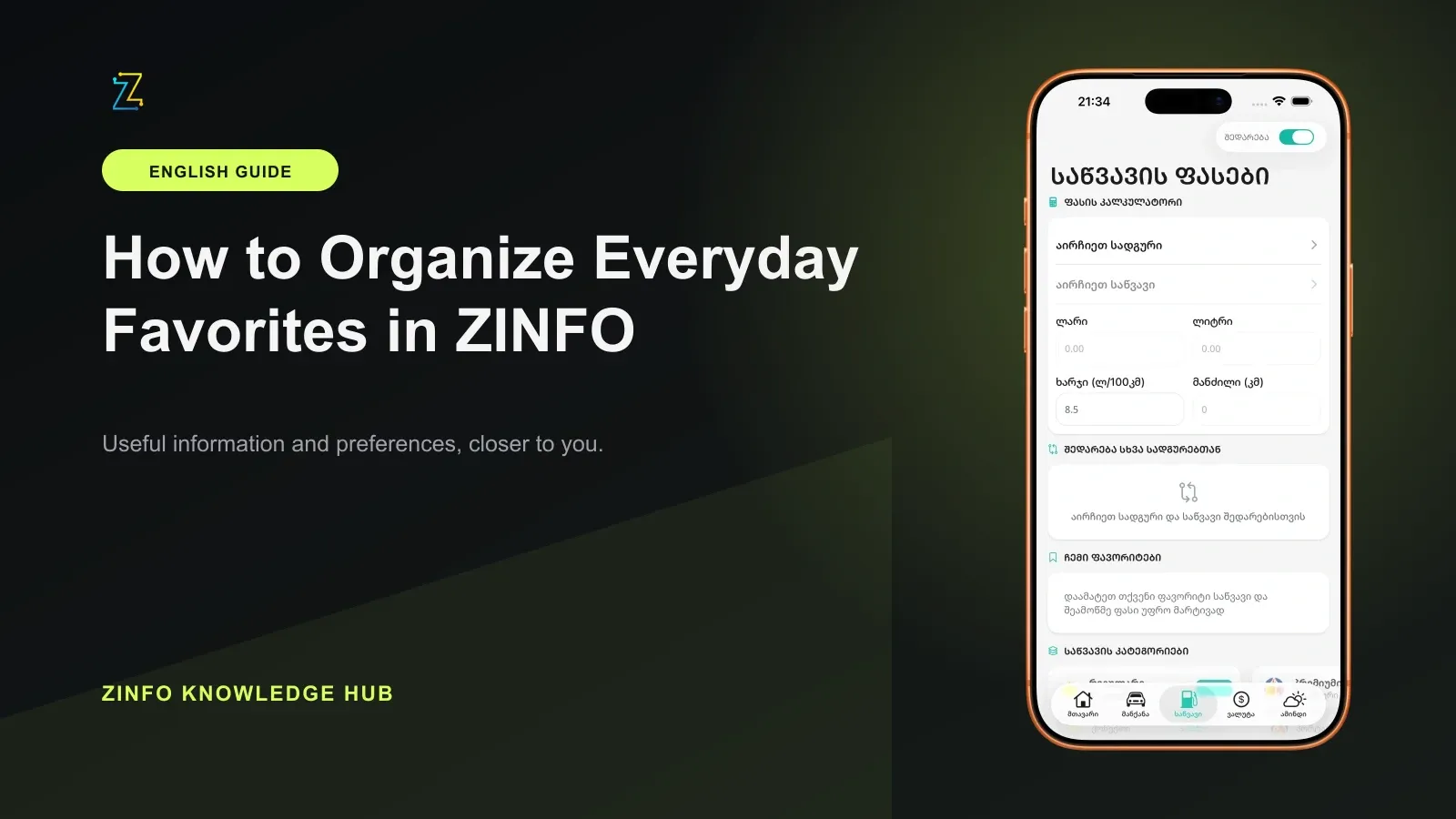
Open the fuel area and identify both the station or network shown and the exact fuel type. Where your version offers a favorites control, use it for the combination you mean to revisit. Return to the favorites area and check the saved label.
A familiar brand name alone is not enough to distinguish different grades. If two entries look similar, open their details before removing either one. Keep choices that fit your route and the fuel you intend to compare. The fuel comparison guide explains the separate price-checking task.
Saving a choice does not lock its price. Read the displayed update information when available, and check the station's final price before filling up. The screenshot accompanying this guide shows an existing ZINFO fuel screen with an empty favorites area. It illustrates the interface; its visible numbers are not a current offer or a sample of saved results.
Keep currency choices easy to recognize
In the currency area, distinguish the currency from the provider and from the conversion direction. Supported favorites help you return to currencies and banks you use, but a saved name does not establish that the converter is currently set to your intended transaction.
For your daily routine, keep the currencies you regularly check and a manageable selection of relevant providers. On the next visit, read the selected provider and both sides of the converter again. A one-off comparison with another provider is a reason to double-check the next screen, not evidence that a favorite has disappeared.
This organizing method does not rank providers or recommend an exchange. Review current terms separately when you intend to transact. Do not assume that every temporary selection becomes a permanently saved preference.
Check the city and the car before reading results
For weather, start with the place name and the forecast date or hour. A remembered city is useful only when it matches the plan you are making. Use ZINFO's weather tools to select the relevant location, then confirm its label before interpreting the result. A favorite or recent choice should not stand in for that check.
For vehicles, identify the intended profile before opening records or adding an entry. Keep access to the cars you actually manage, and review the selected plate when switching between them. The multiple vehicle profile guide covers that workflow in detail.
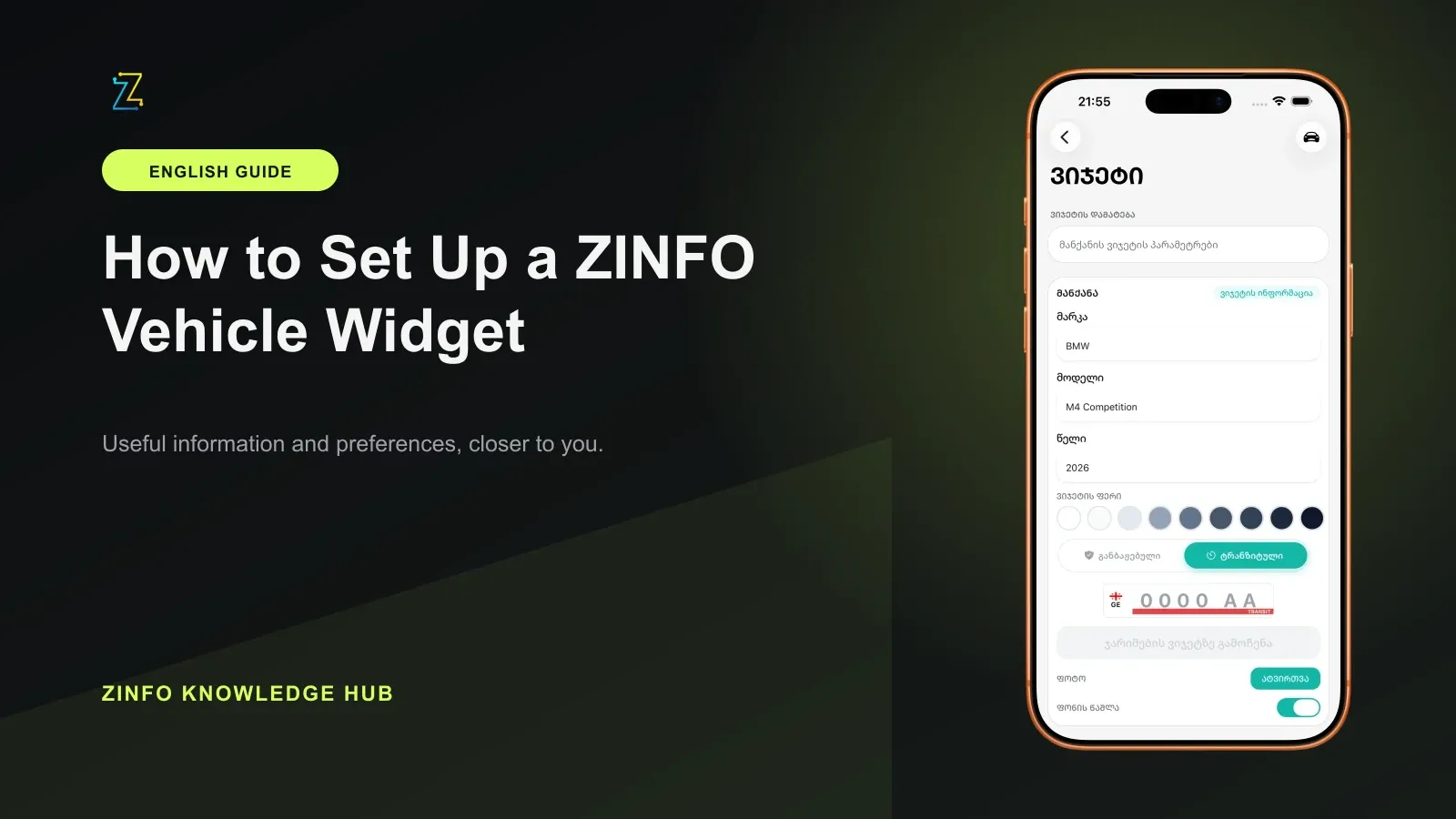
An app selection and a Home Screen widget are separate places to check. If you use a widget, confirm its vehicle too. Follow the widget setup guide when you need to configure that view.
Verify one change before making the next
Use a small, repeatable check whenever you add or remove a supported favorite:
- Read the item's full label and confirm the area you are changing.
- Use the available save or remove control once and wait for the result.
- Return to the relevant list and look for that exact choice.
- Leave the area and reopen it to check what remains selected.
- If the result is unclear, inspect the current state before repeating the action.
If saving requires a connection or sign-in, follow the prompt shown in the app. An error or missing result is a reason to check completion. Do not infer successful saving solely from having tapped a control, and do not delete a vehicle profile merely to change which car is selected.
Review the list when your routine changes
A new route, a completed trip, or a different regularly used car is a good occasion to review your choices. Remove an unnecessary favorite only after confirming its label and the meaning of the control. Removing a shortcut, changing a selection, and deleting a record can have different consequences.
Treat a new phone, another account, or a reinstalled app as a fresh verification point. This guide does not promise that every preference synchronizes between devices or survives reinstallation. Available controls vary with platform, app and device versions, account, and plan. Saved choices also do not prove that notifications are enabled or that data has refreshed.
How this guide was prepared
We reviewed ZINFO's current public feature descriptions, supporting product implementation, and an existing first-party screenshot on September 28, 2026. The proposed shortlist and verification sequence are editorial guidance. No customer account was changed, and no personal list, price survey, or cross-device persistence test is presented here.
Start with one frequently used choice in ZINFO's personalization tools, verify it in its own area, and expand your list only when another choice earns a regular place. The download buttons below let you open the appropriate store for your device.
Sources
- Widgets and personalization in ZINFO · ZINFO · 2026-09-28
- Fuel and stations in ZINFO · ZINFO · 2026-09-28
- Currency and conversion in ZINFO · ZINFO · 2026-09-28
- Weather and internet in ZINFO · ZINFO · 2026-09-28
- Cars, fines, and maintenance in ZINFO · ZINFO · 2026-09-28