ZINFO can show its interface in Georgian, English, or Russian. The setting lives inside the app, so it works the same way whether your phone is set to Georgian, English, or another system language. This matters when you share a phone with relatives, help someone else set up the app, or simply prefer to read menus in a language other than the one your phone uses.
This guide explains where to find the setting, what happens when you change it, and what stays exactly as it was. The steps were checked against the current ZINFO app and against Apple and Google documentation on October 10, 2026. Labels on your phone can differ slightly with the app version and the language currently selected.
1. Know which language you are changing
There are two separate language settings involved. Your phone has a system language that controls its own menus and many other apps. ZINFO has its own interface language that controls the app's screens, buttons, and messages.
ZINFO does not take its interface language from the phone's system setting. If no language has been saved on the device yet, the app starts in Georgian. After that, it uses whatever you last selected inside ZINFO. Changing the phone's system language will not switch ZINFO, and switching ZINFO will not change the rest of your phone.
The supported interface languages are Georgian, English, and Russian. If you were hoping for another language, it is not currently offered as an interface option.
2. Open the profile screen
Start from the ZINFO home screen. Tap the profile button at the top of the screen. It shows a person icon, or your photo if you added one to your account.
What you see next depends on whether you are signed in. Both paths lead to the same language choice, so you do not need an account just to read the app in another language. Pick the section below that matches your screen.
3. Change the language when you are signed in
Scroll to the Preferences group. It contains the Language row, together with options such as the app icon and feedback. The row shows the language currently in use on the right.
Tap the Language row to open a short menu with three choices: ქართული, English, and Русский. The current language has a check mark. Select the language you want. The menu closes and the interface switches right away, without restarting the app.
If you selected the wrong option, open the same row and choose again. Menus will now appear in the new language, so it helps to remember that the row sits in the same group as the app icon option. In Georgian the row is labelled ენა, and in Russian it is labelled Язык.
4. Change the language without signing in
When you are not signed in, the profile screen shows sign in options and a separate language button underneath them. The button displays a globe icon, the current flag, and the current language name.
Tap that button to open the language sheet. Choose ქართული, English, or Русский. The sheet closes and the app switches immediately. This is useful when you want to read the sign in screens in a familiar language before creating an account or entering a phone number.
5. Understand where the choice is saved
ZINFO saves your language choice on the phone as soon as you select it. Close and reopen the app and it should open in the same language. When you are signed in, the app also sends the choice to your account settings in the background.
Do not rely on another phone picking up your language automatically. A new installation, a second phone, or a reinstall after deleting the app starts from the device's own saved value, which means Georgian until you choose again. Repeat the steps above on each device you use.
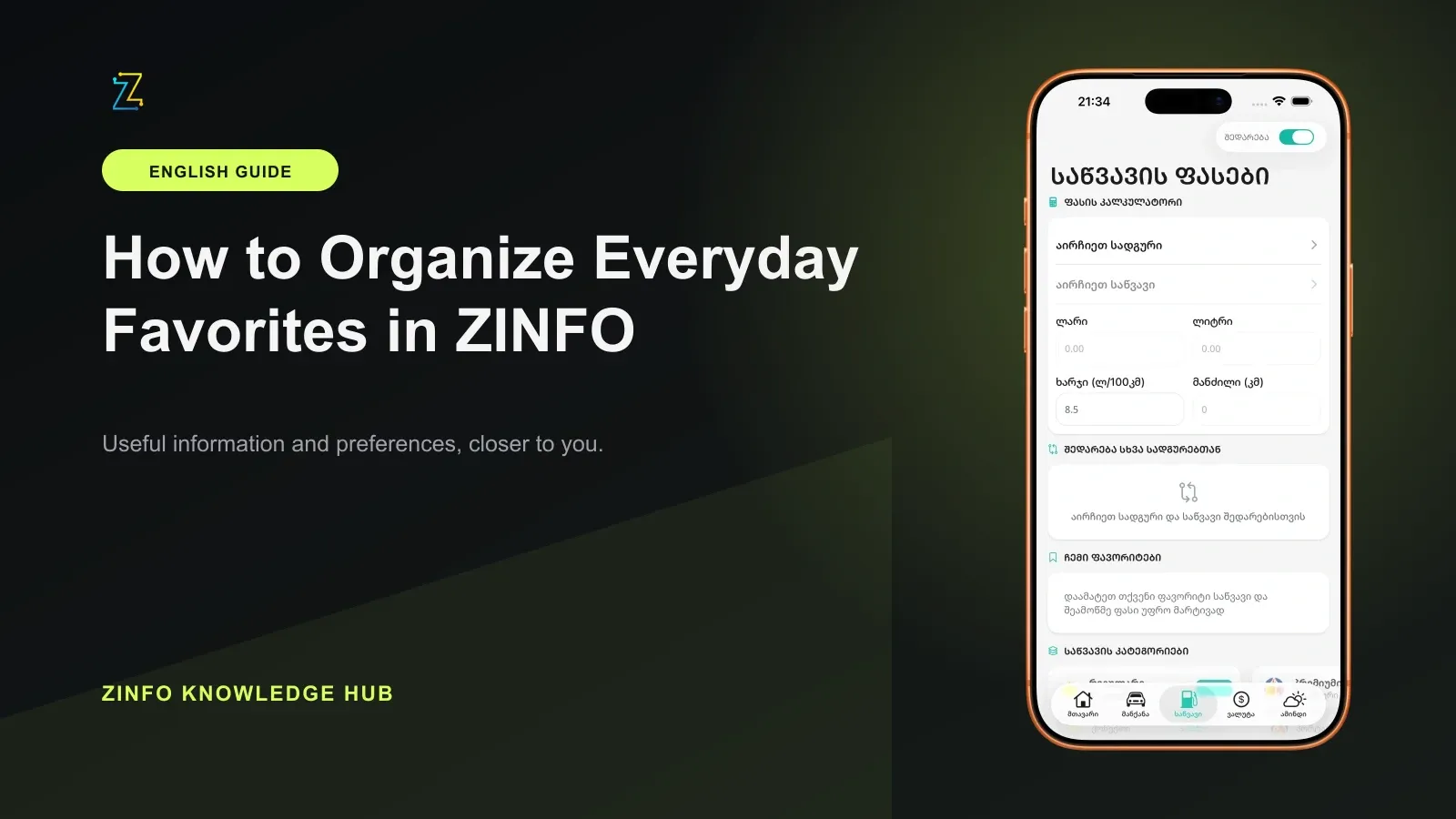
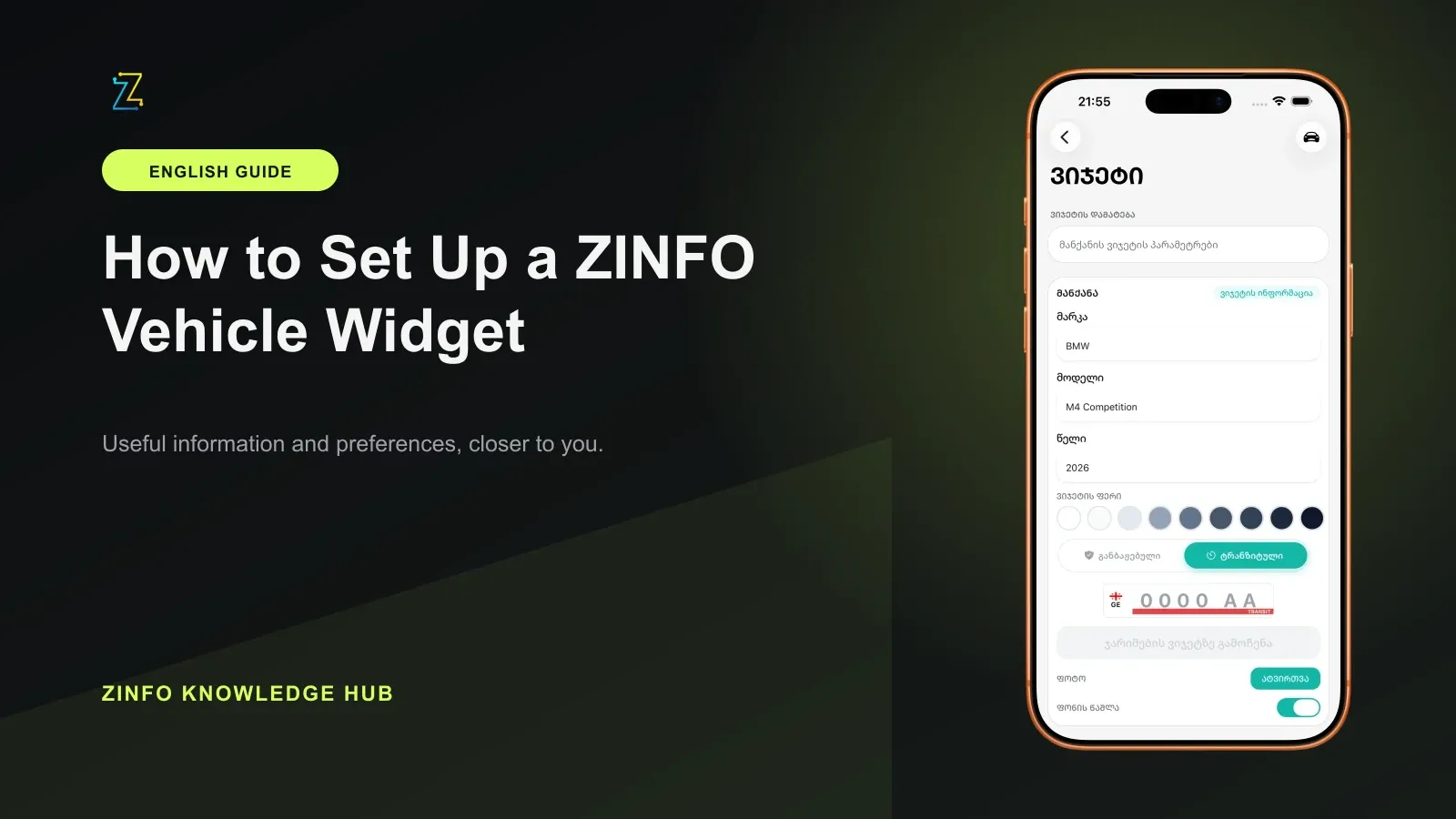
The language setting does not edit your other saved choices. Favorite fuel stations and currencies, bank preferences, weather locations, and vehicle profiles stay as they were. To review those, use the guide to organizing everyday favorites and the description of favorites and saved preferences.
6. Keep the phone settings separate
Apple's language and region instructions cover the iPhone's own language list and regional formats in Settings, then General, then Language and Region. Those settings change the phone, not ZINFO's interface.
On Android, Google's app language instructions describe Settings, then System, then Languages, then App Languages. Google notes that only apps supporting language selection appear there and that some steps need Android 14 or later. For ZINFO, use the in-app setting described above.
This guide covers the app's own interface text. It does not establish that every record received from an outside source is translated, so a name or official description may still appear in its original form.
Final checklist
- I opened the profile screen from the home screen.
- I used the Language row, or the language button when signed out.
- I chose Georgian, English, or Russian and saw the interface switch.
- I know the choice is saved on this phone and needs repeating on another device.
- I confirmed that favorites and vehicle profiles were not changed.
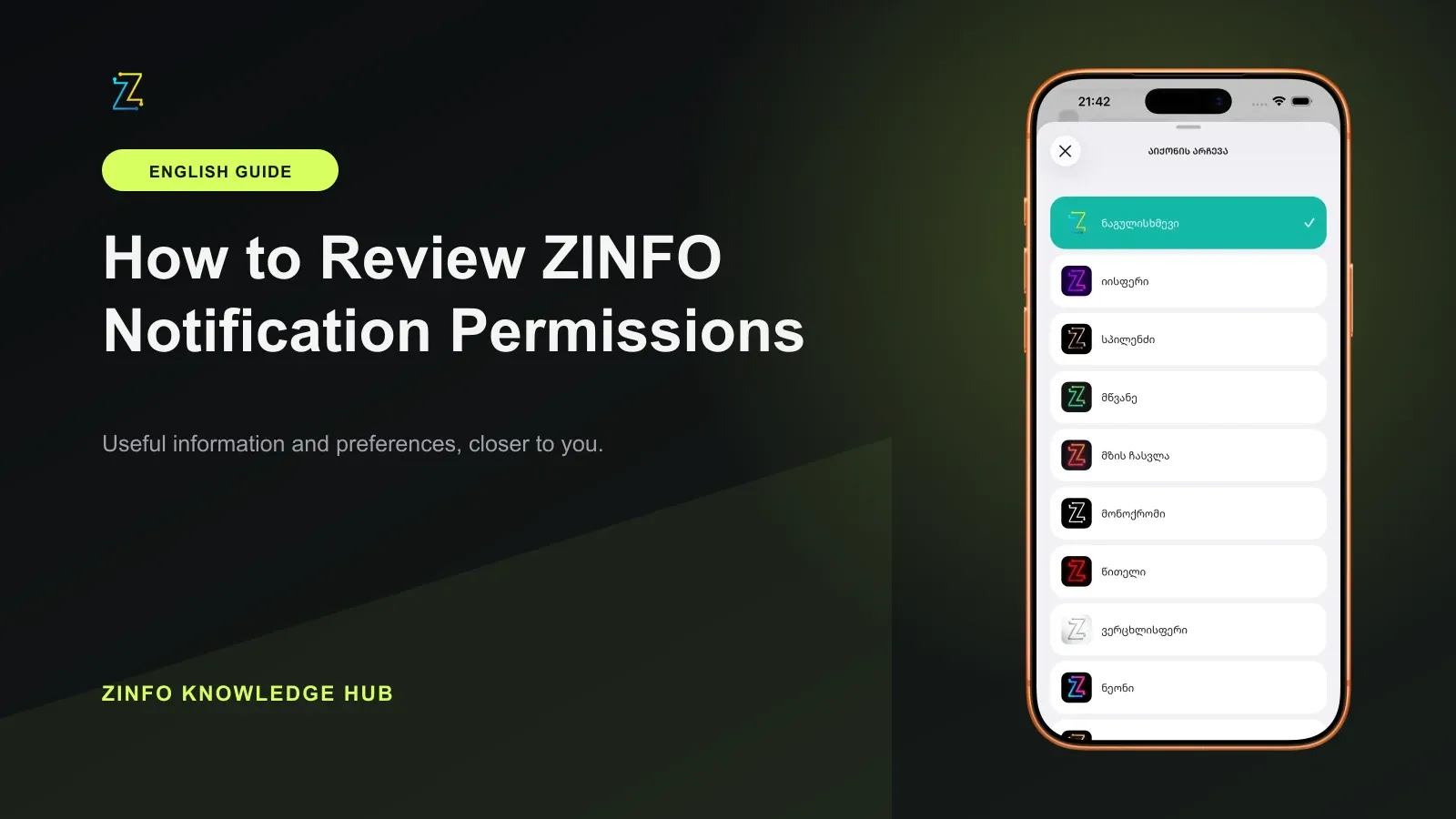
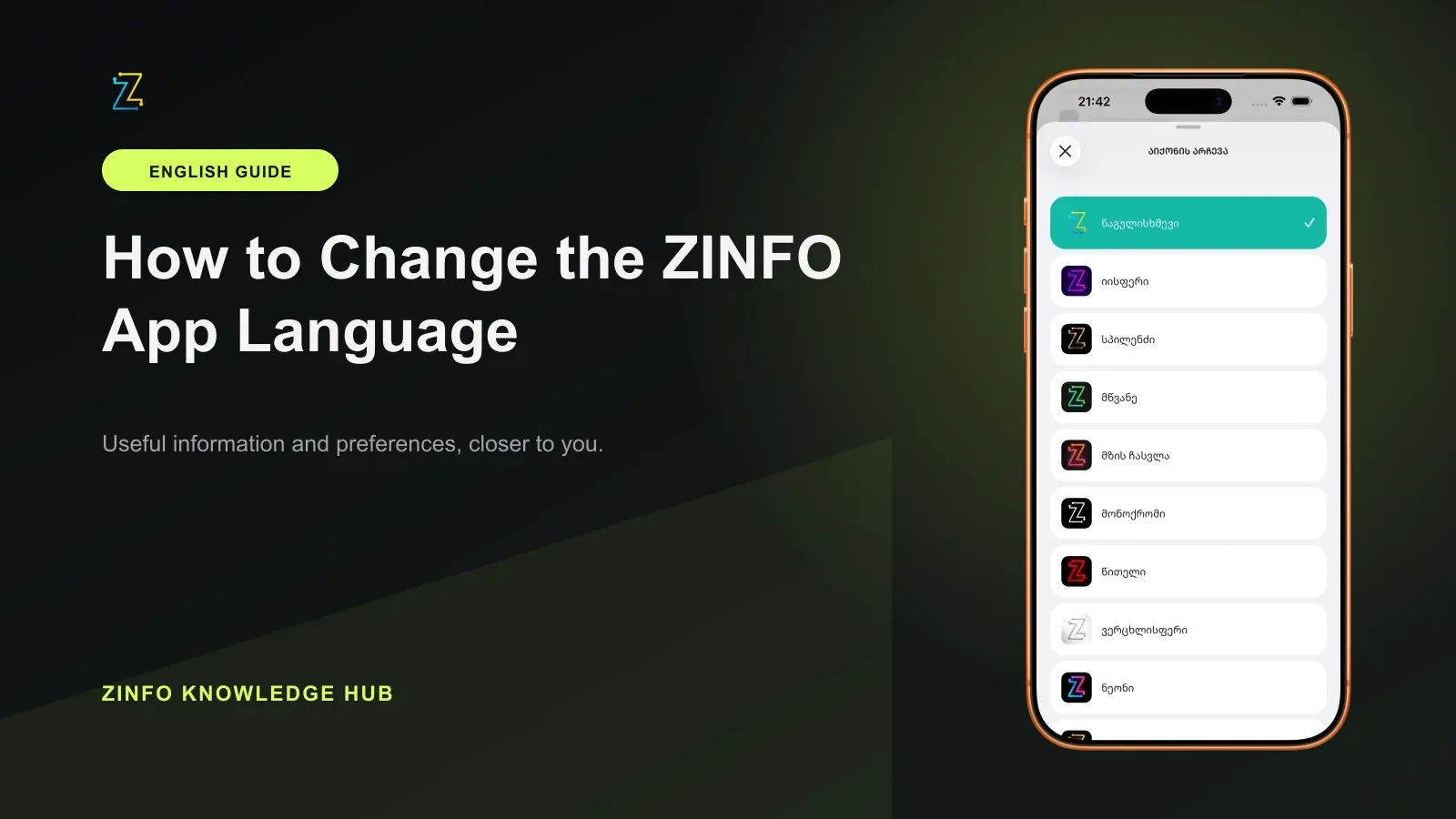
The illustration shows ZINFO's app icon selection screen, which sits beside the Language row in the same Preferences group. For related settings, read how to review notification permissions, how to set up vehicle widgets, or browse the ZINFO knowledge hub.
Sources
- Widgets, personalization and supported interface languages · ZINFO · 2026-10-10
- Change the language and region on iPhone · Apple Support · 2026-10-10
- Change app language on your Android phone · Google Android Help · 2026-10-10