A vehicle widget is useful when it answers one small question quickly: which car am I looking at, and what information is available for it? Adding a widget to the Home Screen is only half the setup. You also need to select the correct vehicle in ZINFO, choose a readable layout, and check that the widget agrees with the information inside the app.
The widgets and personalization area in ZINFO supports vehicle widgets on compatible iPhone and Android devices. Available options depend on the platform, device version, app version, account, and plan. This guide separates the ZINFO configuration from the operating system's widget controls, so you can check each part of the setup independently.
1. Prepare the correct vehicle in ZINFO
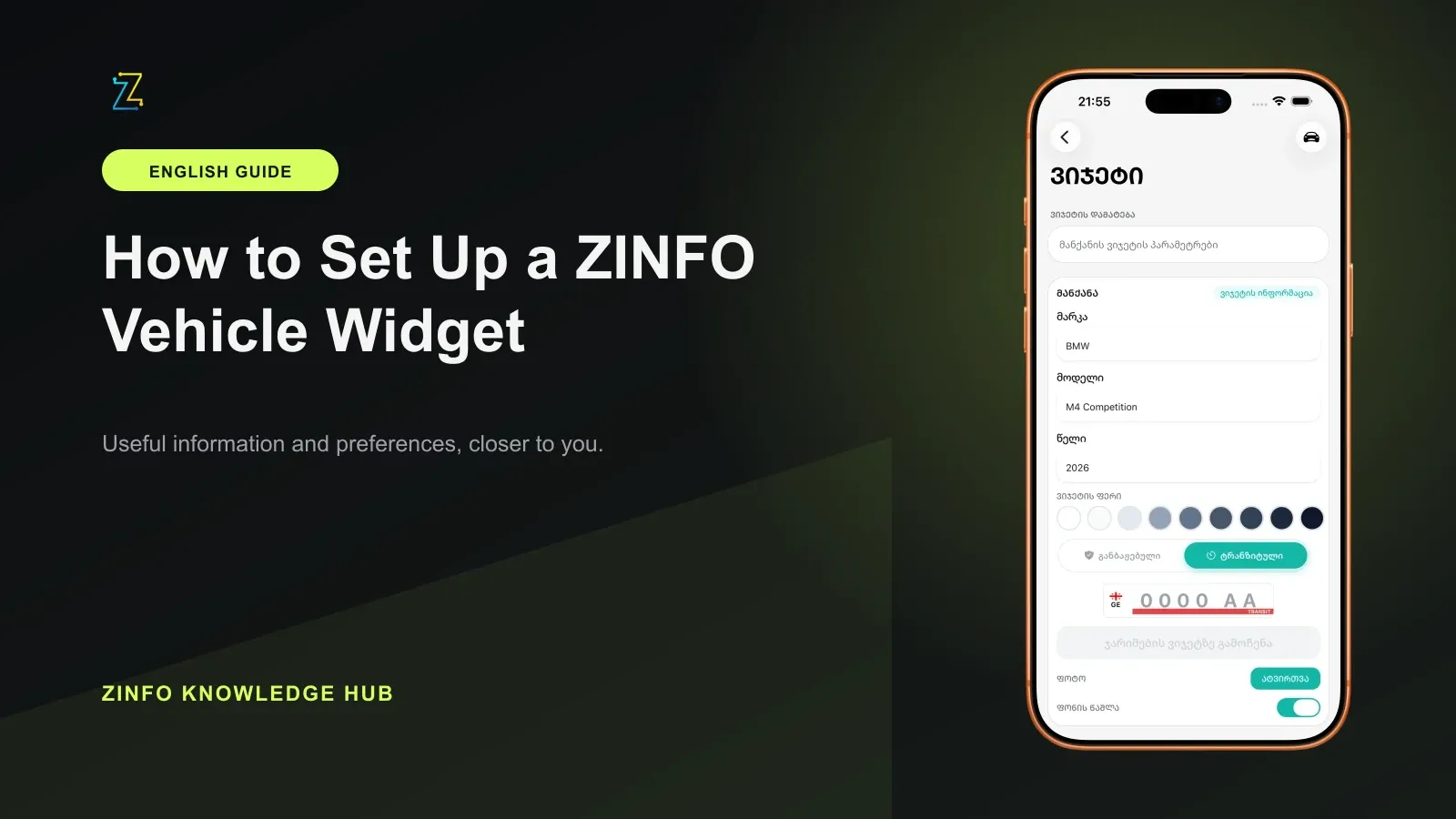
Open ZINFO and sign in if the app asks you to. Find its vehicle-widget configuration area. If you already have saved vehicles, select the car you want the widget to represent. Otherwise, enter the requested details carefully.
Check the plate, whether the vehicle is registered or uses a transit plate, and any technical-document details requested by the form. A car's nickname or photograph is helpful, but it should not replace checking the actual identifier. When several vehicles have similar names or images, the registration details are the more useful final check.
The vehicle profile tools help keep records connected to the intended car. Decide which vehicle you want on the Home Screen before changing colors or images. That avoids creating an attractive widget for the wrong profile.
2. Configure the widget before adding it to the Home Screen
Use the configuration options shown in your installed ZINFO version. Supported options can include the selected vehicle, its visual presentation, and available inspection or fine information. Choose a layout that makes the information you actually use easy to read.
Review the preview, then apply the settings with the app's available widget control. If you use a vehicle image, make sure its crop does not make two cars difficult to tell apart. If you change colors, check the text against the background instead of choosing a combination only because it matches your wallpaper.
A preview demonstrates the layout. It does not confirm that a new Home Screen widget has been added or that every source has returned fresh information. Complete the operating-system step below, then inspect the real widget.
3. Add the widget on iPhone
Apple's current widget instructions describe this Home Screen flow:
- Touch and hold an empty area of the Home Screen until the apps jiggle.
- Tap Edit, then Add Widget.
- Find the ZINFO widget entry and inspect the available sizes.
- Choose a supported size and tap Add Widget.
- Position it on the Home Screen and tap Done.
These are the operating system's controls. The ZINFO configuration determines which supported vehicle information is available inside the widget. If the widget offers Edit Widget when you touch and hold it, inspect the options shown there as well. Apple notes that widget configuration differs between widgets, so do not assume every widget offers the same controls.
This guide covers the Home Screen. The presence of a Home Screen widget does not establish that the same app provides every Lock Screen or other widget format.
4. Add the widget on Android
Google's Android Home Screen guide gives a separate flow:
- Touch and hold an empty space on the Home Screen.
- Tap Widgets.
- Find the app and open its list of available widgets.
- Touch and hold the widget you want.
- Drag it to the Home Screen and release it.
Your device's launcher and Android version can affect the exact appearance of these controls. Follow any configuration prompt shown after placement, and compare the selected vehicle with the one you prepared in ZINFO.
Google explains that a widget can be resized when handles appear after you touch and hold it and lift your finger. Drag those handles only when the widget supports resizing. If no resize handles appear, choose another available size rather than assuming that the current widget can stretch freely.
5. Verify the real widget against the app
After placing the widget, check three things together: the vehicle identifier, the visible information, and the result of opening the app from your normal routine. Reopen ZINFO and compare the same vehicle's record with the widget.
If something differs, first check the selected vehicle and confirm that your configuration was applied. Refresh the relevant information in the app using the controls available there, then review the widget again. Avoid assuming a fixed refresh interval: availability and updates depend on the supported platform and data path.
A displayed fine or inspection field is a convenient reminder to inspect the full record. For a fine-related decision, use the guide to checking car fines and confirm important details with the issuing authority. A widget is not a substitute for reading the complete record.
6. Handle missing or incomplete widgets methodically
If ZINFO does not appear in the widget gallery, confirm that the app is installed, open it, and check for an available app update through the official store. Then revisit the widget area and confirm that your device and installed version support the option you are trying to use.
If the widget appears but its information is incomplete, check the account, selected vehicle, required form details, and available source information. An empty field should not be interpreted as confirmation that no fine exists or that an inspection requirement has been satisfied.
When asking support for help, describe your device, app version, the step that failed, and whether the app itself shows the expected information. Remove personal or vehicle identifiers from any screenshot you share publicly. That produces a useful bug report without exposing the underlying record.
Final setup checklist
- The widget is connected to the intended vehicle.
- The app's configuration has been applied.
- The widget is placed using the correct iPhone or Android flow.
- The chosen size and colors keep the information readable.
- The real Home Screen widget has been compared with the app.
- Missing information is being investigated rather than interpreted as a confirmed result.
- Important fine or inspection details will be checked in the full record.
Once the widget works, keep the setup focused. Saved favorites and preferences can reduce repeated searches inside ZINFO, while the widget keeps one useful vehicle view close at hand. Return to the knowledge hub for practical guides to the records and tools behind that view.
Sources
- Widgets and personalization in ZINFO · ZINFO · 2026-09-10
- How to add and edit widgets on your iPhone · Apple Support · 2026-09-10
- Add apps, shortcuts and widgets to your Home screens · Google Android Help · 2026-09-10