When you use more than one car, a familiar photograph can make the wrong profile look right. You might check one vehicle's information and then record another vehicle's mileage without noticing the switch. A short identity check before each task helps keep those records separate.
ZINFO's vehicle profiles let you add registered or transit vehicles and move between them. This guide explains a repeatable routine for choosing the intended car, reviewing its available information, and confirming a saved entry. It does not set a vehicle-count limit or promise that every record or notification is available for every account.
1. Start with an identifier you can check
Before adding a profile, have the vehicle's plate and any document details requested by the form available. Read them from the relevant vehicle or document instead of copying another saved profile from memory. If the form distinguishes registered and transit vehicles, choose the option that matches the vehicle you are adding.
Use the plate as your final identity check. A vehicle image can help you recognize a card, but two cars may have similar images. Do not rely on the card's position in a list either: the first visible vehicle is not necessarily the one you intend to work on today.
For a household with two cars, decide which car the current task concerns before opening a record. That small pause is more useful than trying to remember which profile you last viewed.
2. Add each vehicle as a separate profile
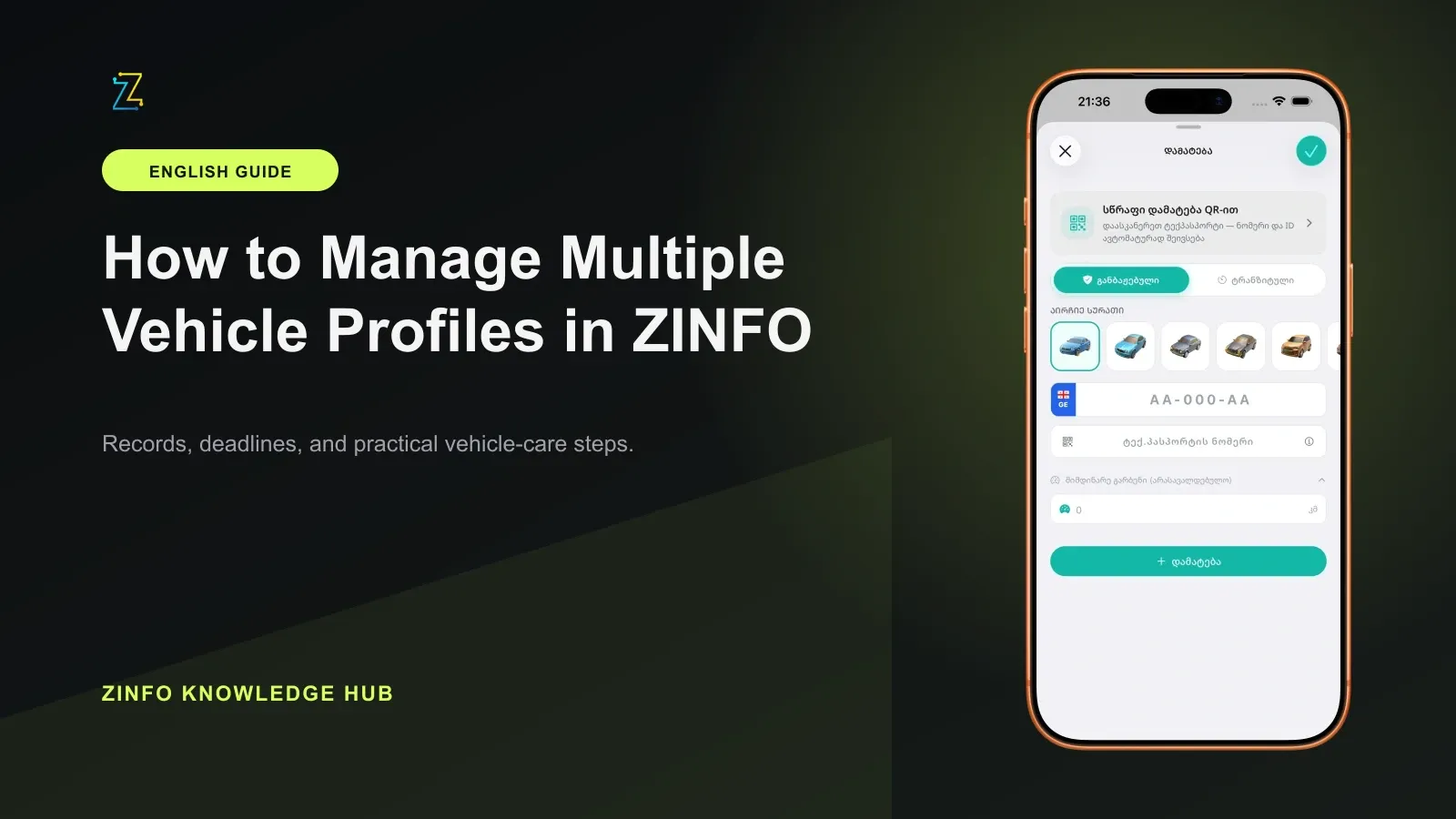
Open ZINFO's vehicle area and use the available control for adding a car. Enter the requested details for that vehicle, review them, and submit the form. Follow the fields and messages shown in your installed version; registered and transit entries may ask for different information.
After the operation finishes, return to the saved vehicles and find the intended plate. Open that profile and compare its identifier with the details you entered. Seeing the form close is less useful than confirming the resulting profile in the list.
If the result is unclear, inspect the saved list and any error message before submitting again. A connection problem and an incorrect identifier need different responses. Keep a note of the step that failed so you can explain it to support without guessing whether the vehicle was saved.
3. Use the same check whenever you switch cars
Select the next vehicle, then read its plate before opening its information. Repeat the check after moving between profiles, returning from another screen, or coming back to the app later. The purpose is to confirm the current selection, not to assume that the app remembers the selection you expected.
For example, you may review car A, switch to car B to check an available record, and then receive a service receipt for car A. Before entering that receipt's details, deliberately return to car A and check the plate again. This is an organizational example, not a claim about an automatic transfer between profiles.
If you use a Home Screen widget, check its chosen vehicle separately. The vehicle widget setup guide explains how to compare the widget with the corresponding record inside ZINFO.
4. Read each result in its vehicle context
Once the profile is correct, open the information you need. ZINFO's fine details and media tools can show the details and supporting media available for a particular record. Read the full result rather than treating a small summary as the whole record.
When comparing two vehicles, finish reviewing the first result before switching. Keep the vehicle identifier, record date, and visible status together in your notes. If you save a screenshot for your own reference, include enough context to tell which record it represents, and keep it private.
This workflow helps with organization; it does not determine legal status, payment deadlines, or the final amount due. For those questions, use the relevant issuing authority and the guide to checking car fines. Do not infer that a missing field or failed lookup means there is nothing to check.
5. Confirm mileage and service entries after saving
Before recording mileage or an oil change, compare the selected plate with the car and the service document in front of you. Use the actual date and mileage associated with that vehicle. Do not carry over another car's figures just because you are completing several records in one sitting.
Enter only the information supported by the available fields and your records. Once saved, reopen the same vehicle's history and check the date, mileage, and notes. If an entry is missing or looks wrong, investigate that particular record before creating another one.
The maintenance reminders guide covers organizing service dates and intervals. Here, the main check is simpler: the entry belongs to the intended vehicle, and the saved result matches what you meant to record.
6. Investigate a mismatch before changing the profile
If you cannot find the expected information, first confirm the account and vehicle identifier. Then check whether the screen shows a completed result, loading state, or error. Revisit the information using the controls available in the app and note what changes.
Avoid deleting a profile as the first troubleshooting step. This guide does not establish what deletion retains or removes, or whether records move when vehicle details change. Read the actual confirmation and ask support before an action whose consequences are unclear.
A useful support request gives the app version, the screen, the action, and the observed result. If a screenshot will be public, remove plate, document, contact, and payment details first. Share any necessary identifiers only through the appropriate private support channel.
A short routine for every vehicle
- Choose the vehicle the task actually concerns.
- Check its plate before reading or entering information.
- Keep record dates and statuses connected to that vehicle.
- After saving, reopen the same profile and verify the entry.
- Treat incomplete results as something to investigate.
- Review widget selection and notification availability separately.
ZINFO's published feature guide notes that reminders depend on the plan and account. A saved vehicle therefore should not be treated as proof that every alert is enabled or will arrive. Open the cars, fines, and maintenance area, choose one vehicle, and work through this check once before applying it to the rest of your saved list.
Sources
- ავტომობილები, ჯარიმები და მოვლა · ZINFO · 2026-09-21
- Cars, fines, and maintenance · ZINFO · 2026-09-21