Two speed tests can return different numbers even when you leave the device in the same place. A useful comparison starts with a small, repeatable plan: keep the conditions you can control consistent, retain every completed result, and record what you changed before the next group of tests.
The internet speed test in ZINFO gives you download, upload, ping, and jitter readings. This guide focuses on comparing repeated runs. For the meaning of each field and its units, start with our guide to reading speed-test results.
1. Decide what you want to compare
Write down a specific question before starting. For example: does the same phone give more consistent completed results near the router than at the desk? Or does the problem recur at a different time of day? A clear question helps you avoid changing several things and then attributing the difference to whichever change you remember.
For each group, record the device, connection type, approximate position, test tool, time and time zone, and whether a VPN or background transfer is active. Keep the same app and test settings. If a tool lets you choose a server, keep that choice consistent; ZINFO's guide does not promise a server-selection control.
Cloudflare's explanation of its measurement method describes how server location, payload size, connection behavior, and sample aggregation affect the reported result. A number from another tool can provide additional context, but it belongs to a separate comparison with its own method.
2. Finish a small set and keep every attempt
Choose a bounded set, such as three or five attempts, before looking at the results. Run them one at a time and let each test finish. Pause avoidable downloads that you control, keep the device in position, and use a consistent pause between attempts. Write down any interruption or connection switch.
Retain slow results as well as fast ones. If an attempt fails or stops halfway, record that status separately. A failed upload phase is not a successful upload measurement of zero. If you decide to exclude a run because the connection changed, keep the original record and the reason, then start a clearly labeled replacement group.
Full speed tests consume data. Check your allowance before repeating them on mobile data, and stop when you have enough information for the question. Cloudflare's own public test warns about its data use; that warning does not establish the amount a different app will transfer.
3. What five short editorial requests showed
On 19 September 2026, between 07:20:09 and 07:20:18 Asia/Tbilisi, the ZINFO editorial workflow made five sequential desktop HTTPS requests to Cloudflare's public download endpoint. Each requested and received 1,000,000 bytes, used the same URL and HTTP/1.1 client settings, and was followed by a two-second pause before the next request. All five returned successfully, and none was discarded.
These were short desktop probes, separate from the ZINFO app and the full Cloudflare Speed Test. We calculated an average rate from each request's complete elapsed time, including connection and transfer overhead. The displayed numbers below are rounded from the original receipt:
- Attempt 1: 0.265719 seconds, approximately 30.1 Mbps.
- Attempt 2: 0.273056 seconds, approximately 29.3 Mbps.
- Attempt 3: 0.055769 seconds, approximately 143.4 Mbps.
- Attempt 4: 0.058203 seconds, approximately 137.4 Mbps.
- Attempt 5: 0.051813 seconds, approximately 154.4 Mbps.
The calculation was transferred bytes multiplied by eight, divided by elapsed seconds and by 1,000,000. The complete set transferred 5,000,000 bytes. Its sanitized immutable receipt retains attempt order, timestamps, byte counts, durations, and calculations without an IP address, provider name, location, account, or credential.
We made no network-setting changes during this set. Background traffic, VPN status, connection type, and the physical server path were not independently controlled. The short requests cannot establish sustained capacity, upload performance, app ping or jitter, or the cause of the variation. They show why the complete set matters when you summarize a measurement.
4. Report the middle and the spread
Sorting those five calculated rates gives 29.3, 30.1, 137.4, 143.4, and 154.4 Mbps. The middle value, or median, is about 137.4 Mbps. The lowest and highest values span about 125.1 Mbps. Reporting only the fastest result, 154.4 Mbps, would leave the two much slower requests out of the reader's view.
The median is a description of this small set, not a guaranteed rate. It also does not explain why the requests differ. Preserve the attempt order alongside the summary: sorting helps find the middle, while the original order shows that the two lower readings happened first. That pattern is worth retaining, but it is not enough to identify a network fault or a warm-up effect.
For your own completed app tests, summarize each field separately. Keep download values together and upload values together, using the same units. Describe the range and any failed attempts instead of combining different fields into one score. A broad spread is a reason to examine the conditions before claiming an improvement.
5. Change one condition for the next group
After recording the first set, make the change that answers your original question. If you move closer to the router, keep the same device and tool. If you compare Wi-Fi with mobile data, label them as separate connection groups and note that the network path also changes.
A practical follow-up is to return to the original condition and repeat the same small set. This can help you notice whether the apparent improvement remains when you return, or whether results are changing with time. It still cannot control every other device, radio condition, or upstream network event.
Compare both the measurements and the real task that was failing. A better download result does not by itself explain a video-call problem. Cloudflare distinguishes measurements on an idle connection from measurements under load; only compare those states when the tool actually identifies them.
6. Use the ZINFO screen and keep a concise record
In the weather and internet area, confirm the intended connection, open the speed test, and wait for a completed result before writing it down. Keep your comparison notes separately rather than assuming that the app stores a historical series or exports a report.
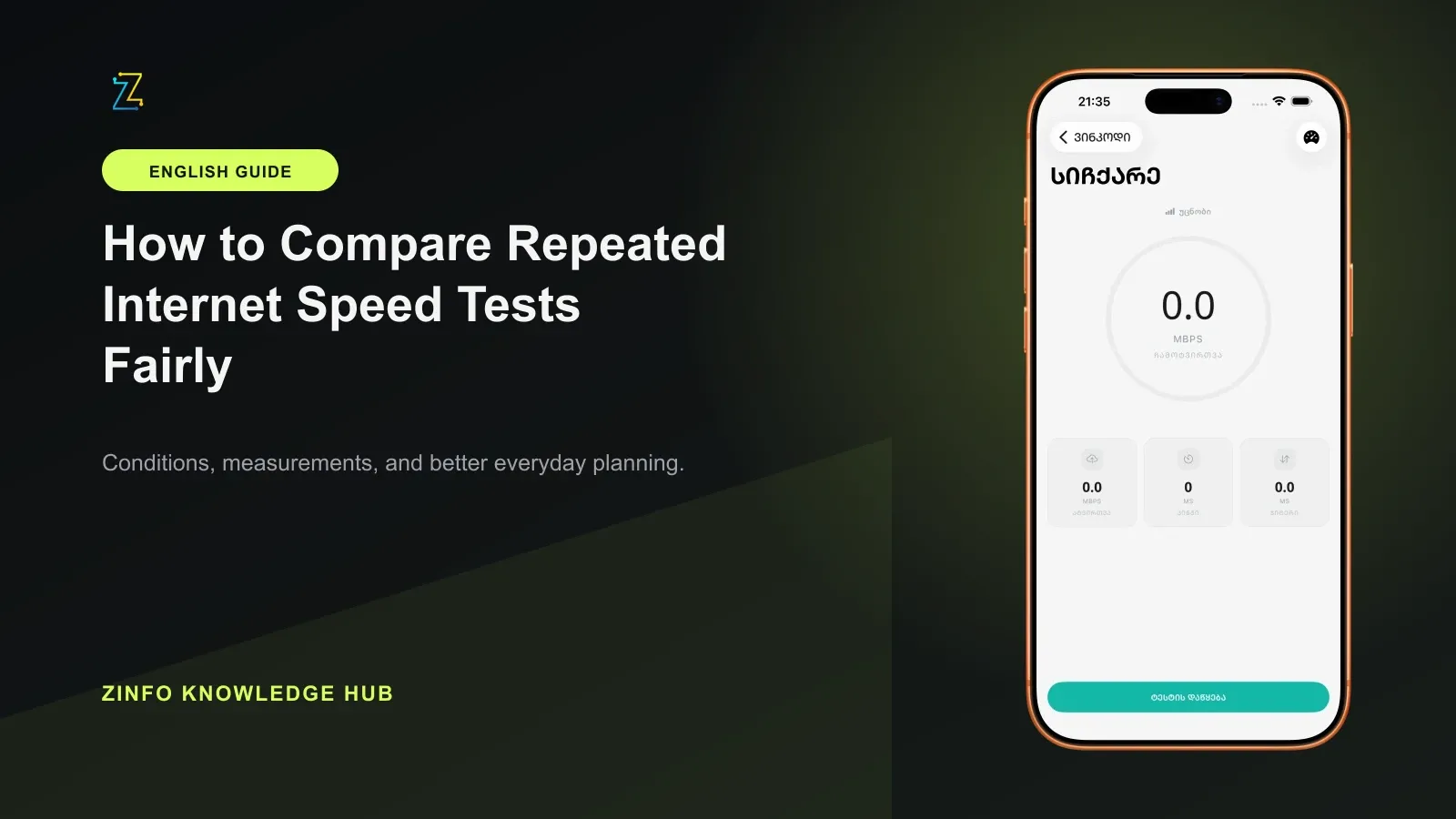
The verified ZINFO image in this guide shows the starting screen with zero-valued fields and a start button. It illustrates where the test begins. The editorial figures above were collected separately and have not been inserted into that screen.
A useful note contains the question, date and time, conditions, number of attempts, completed readings, errors, and the one change made before the next group. If you contact your provider, share the relevant summary and the actual symptom. Five short requests alone cannot prove a contract breach, rank providers, or describe internet quality across Georgia.
Before finishing, check that you kept every attempt, separated different connections, used matching units, reported the spread, and left the limitations beside the numbers. You can return to the knowledge hub for related guides on interpreting everyday information in context.
Sources
- Weather and internet in ZINFO · ZINFO · 2026-09-19
- How does Cloudflare’s Speed Test really work? · Cloudflare · 2026-09-19
- Internet Speed Test · Cloudflare · 2026-09-19