A speed test is easier to use when you read it as several measurements of one connection, at one moment. The large download number describes only part of the result. Sending a file, joining a video call, and waiting for a page to respond can put different demands on the same network.
The internet speed test in ZINFO presents download, upload, ping, and jitter. This guide explains those fields, shows how a recorded download can be expressed in two different units, and helps you decide what to check next without treating one result as a verdict on your provider.
1. Confirm that you have a completed result
Before comparing numbers, check whether the test has started, is still measuring, or has finished. A value changing during a phase is an intermediate reading. An empty field or a zero on the starting screen is not evidence that the connection has no capacity.
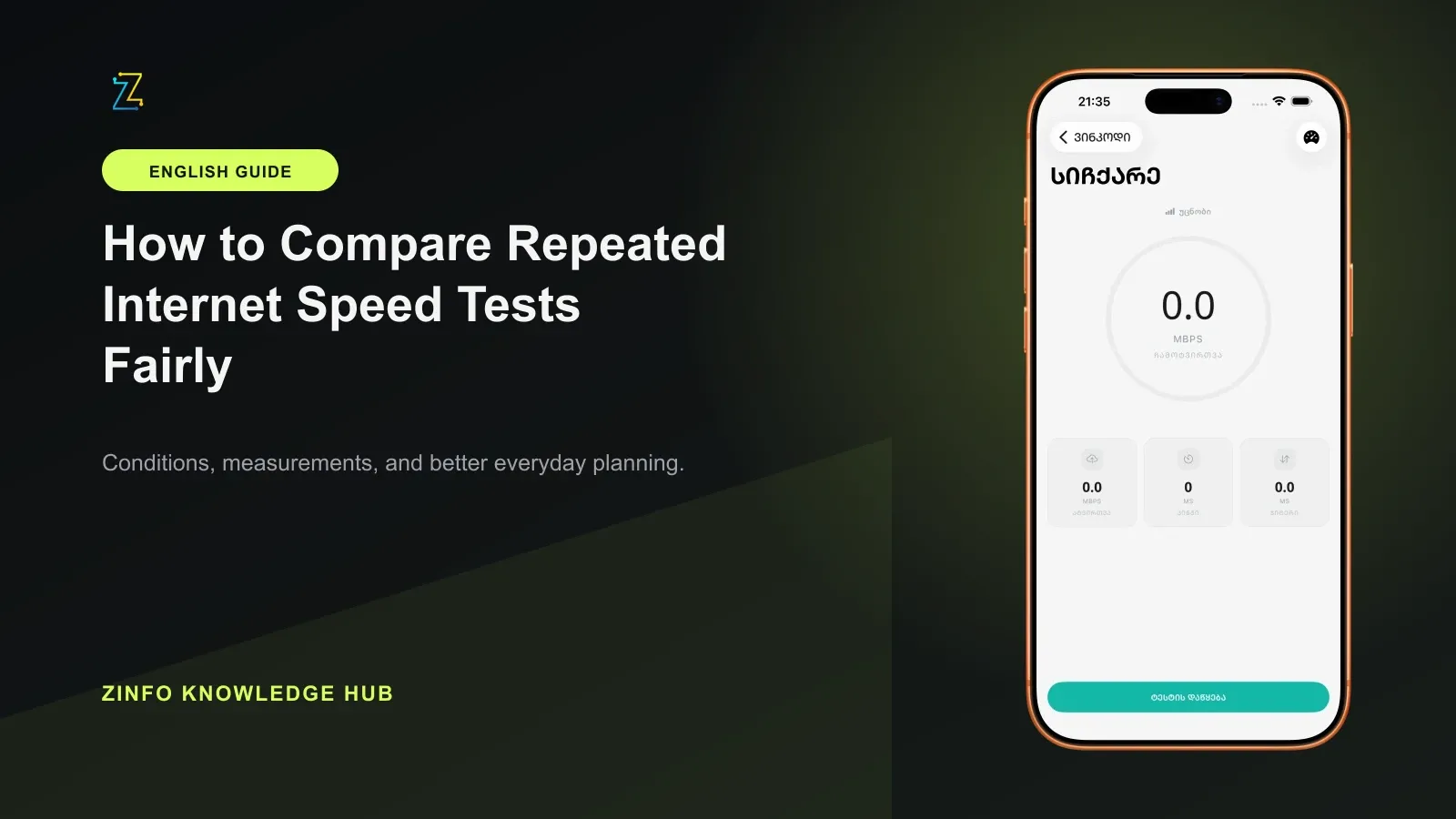
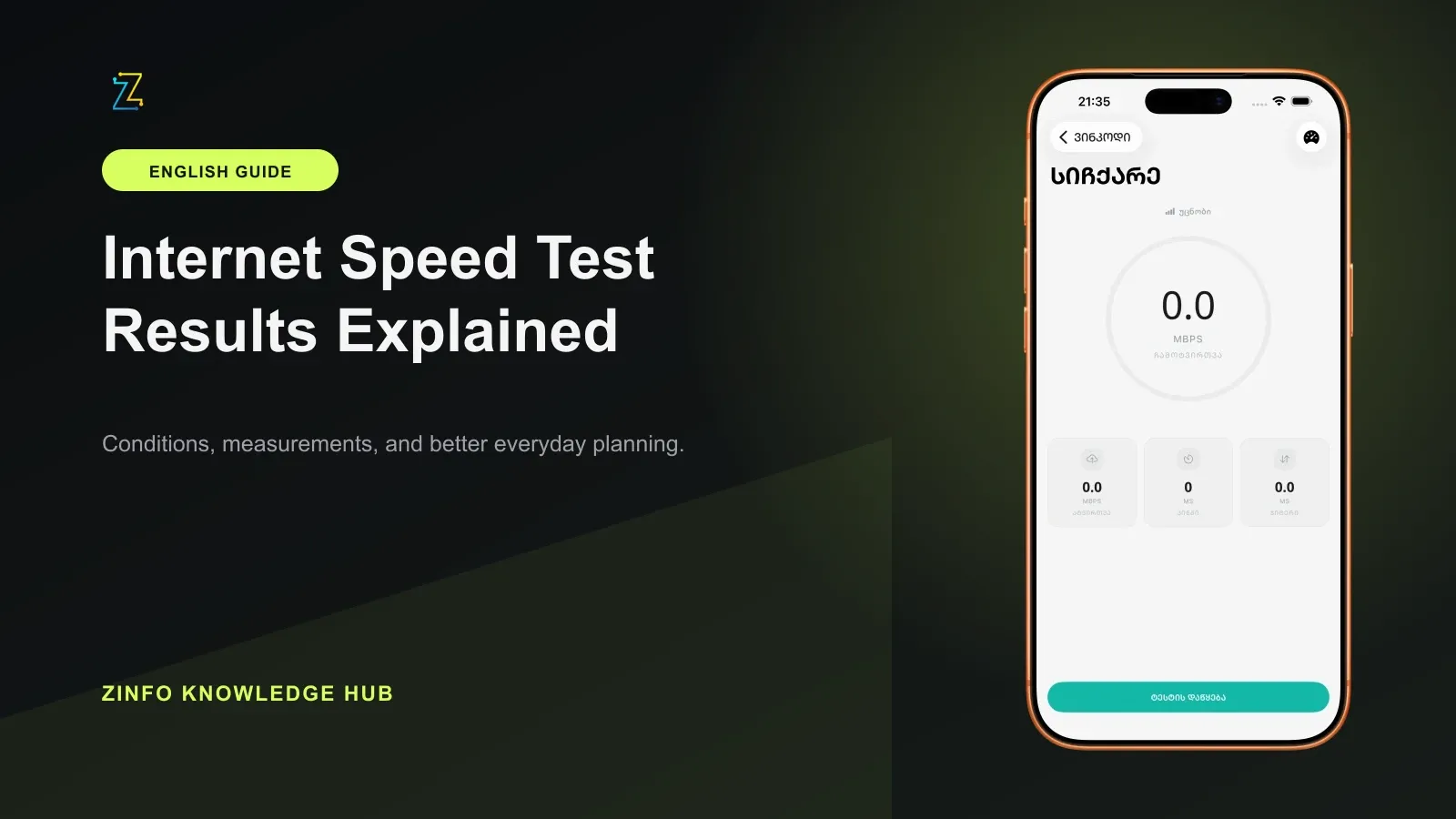
The verified ZINFO image used in this article shows the starting screen, with a start button and zero-valued measurement fields. It illustrates the interface, not a completed test and not the editorial measurement described below. We have not replaced those values with invented results.
Check whether the device is using Wi-Fi or mobile data. Record the time and the connection type with the finished result. If the test reports an error or does not complete, keep that status separate from a successful measurement. A partial download result cannot stand in for a completed upload test.
2. Download and upload describe opposite directions
Download measures data arriving at your device. It matters when receiving files, loading media, and installing an update. Upload measures data leaving your device. It matters when sending a video, synchronizing files to a remote service, or transmitting your camera feed during a call.
A connection can produce a strong download result and a much lower upload result. That difference alone does not show an error. Read the field that corresponds to the task you are trying to improve, then check the other conditions that can affect it.
For example, if a large incoming file is slow, the download result is a useful clue. If other people have trouble receiving your camera feed, the upload side and consistency of the connection deserve attention. Neither result proves that the remote application, its servers, or the rest of the network is working correctly.
3. Mbps and MB/s are different units
Speed tests commonly express throughput in megabits per second, written Mbps. A download application may instead display megabytes per second, written MB/s. One byte contains eight bits. With decimal units and the same measured data:
Mbps = bytes transferred × 8 ÷ elapsed seconds ÷ 1,000,000
MB/s = bytes transferred ÷ elapsed seconds ÷ 1,000,000
The factor of eight changes the unit, not the connection. Check the complete label before comparing a speed-test number with a file-transfer window. Some applications use binary units such as MiB/s, which require a different byte divisor.
These conversions do not predict the exact time every file will take. Connection setup, protocol overhead, server behavior, changing throughput, and the way an application measures progress also affect a real transfer.
4. What our recorded download actually showed
On September 13, 2026, at 10:45 Asia/Tbilisi, the ZINFO editorial workflow recorded one bounded HTTPS download from Cloudflare's public test endpoint. A desktop command-line client received 1,000,000 bytes successfully in 0.07089 seconds. The sanitized immutable receipt retains the byte count, request timing, method, and calculation, without an IP address, account identifier, location, or credential.
Dividing those bytes by the recorded request duration gives approximately 14.1 decimal MB/s. Multiplying by eight gives approximately 112.9 Mbps. These are two descriptions of the same recorded transfer, not two competing test results.
This was a single desktop probe, not an in-app ZINFO test or a sample of internet service across Georgia. Its request duration includes transport overhead, and its small payload is unsuitable for estimating sustained maximum capacity. We did not measure upload or jitter in that probe. Its useful finding is the unit distinction; it cannot rank providers or promise a future download speed.
Cloudflare's current explanation of its test method also explains that payload size, latency, sample aggregation, and other design choices affect reported throughput. Two tools can produce different numbers without either measuring exactly the same thing.
5. Ping concerns delay; jitter concerns variation
Ping is a delay measurement, usually shown in milliseconds. In a connection test, it represents the response timing measured by that test's method. Lower delay can help an interactive task feel more responsive, but the result applies to the tested path and endpoint, not every service you might open.
Jitter describes variation in delay. A reasonably small typical delay can still be accompanied by uneven responses. That variation matters for tasks that need data to arrive consistently, including calls and other real-time interactions.
Cloudflare's latency guide distinguishes time delay from throughput and bandwidth. Its speed-test documentation also separates measurements taken on an idle connection from those taken while data is being transferred. Do not assume that a tool reports both conditions unless its result explicitly says so.
There is no single download number that proves a call will be smooth. Read the delay and variation fields alongside throughput, and compare the result with the problem you actually observed. Avoid treating a quality badge as a guarantee for every application.
6. Turn the result into a practical check
Start with the symptom and choose the relevant evidence:
- Slow incoming files: inspect download throughput and whether the file's server is the limiting factor.
- Slow sending or cloud synchronization: inspect upload throughput and background transfers.
- Delayed responses: inspect ping, the destination involved, and whether the delay also occurs elsewhere.
- Uneven calls: inspect jitter and whether the connection is busy or unstable during the call.
Before a follow-up test, confirm the intended connection and pause avoidable background downloads. Changing the connection, location, or running applications also changes the conditions, so write down what you changed. For broader connection checks, return to ZINFO's weather and internet area.
If only one service is slow, one general speed result does not establish an ISP fault. If several services show the same problem, retain completed results with their times and contact the provider through its official support channel. Share relevant measurements rather than account credentials or unrelated personal information.
7. Keep the limits attached to the numbers
A result describes the path between the device and the test service during that run. Wi-Fi conditions, other users of the connection, the device, the server, and network activity can all affect the result. Cloudflare explicitly explains that its own test is designed around particular transfer sizes and network-quality measurements, rather than simply reporting a connection's absolute peak.
ZINFO's measurement labels help organize the result, but do not turn it into a contract check, a national benchmark, or a prediction for every application. Compare like units and clearly identified conditions. When an error, an incomplete phase, or an unknown connection type remains, resolve that uncertainty before drawing a conclusion.
The practical checklist is short: confirm completion, identify the connection, read all four fields, check their units, and connect the result to the task that is failing. You can browse all ZINFO features or return to the knowledge hub for other guides built around the same habit of checking context before acting on a number.
Sources
- Weather and internet in ZINFO · ZINFO · 2026-09-13
- How does Cloudflare’s Speed Test really work? · Cloudflare · 2026-09-13
- What is latency? · Cloudflare · 2026-09-13
- Internet Speed Test · Cloudflare · 2026-09-13