Live caller ID needs more than an installed app. Your phone must support the feature, ZINFO must finish its setup, and the relevant system controls must be enabled. A completed setup still cannot guarantee a name for every incoming number.
Use this guide to check those stages in order. It focuses on activating live caller ID. For advice about assessing an unfamiliar caller or verifying a displayed name, use the separate unknown-number guide.
1. Check the device and open ZINFO first
ZINFO's supported range includes iPhone on iOS 18 or later and compatible Android devices on Android 10 or later. The operating system version is a starting check: the installed app, available system options, account setup, and permissions also matter.
Open ZINFO while signed in and enter its caller identification setup screen. Read the status shown there before opening system settings. If the screen reports that the feature is unavailable on the device, repeatedly granting unrelated permissions will not establish support.
Keep these three questions separate:
- Is this device and app version supported?
- Has the caller identification setup finished?
- Was matching information available for a particular incoming number?
The first two describe readiness. The third describes a lookup result. An unanswered third question does not, by itself, mean that setup failed.
2. On iPhone, check both ZINFO entries
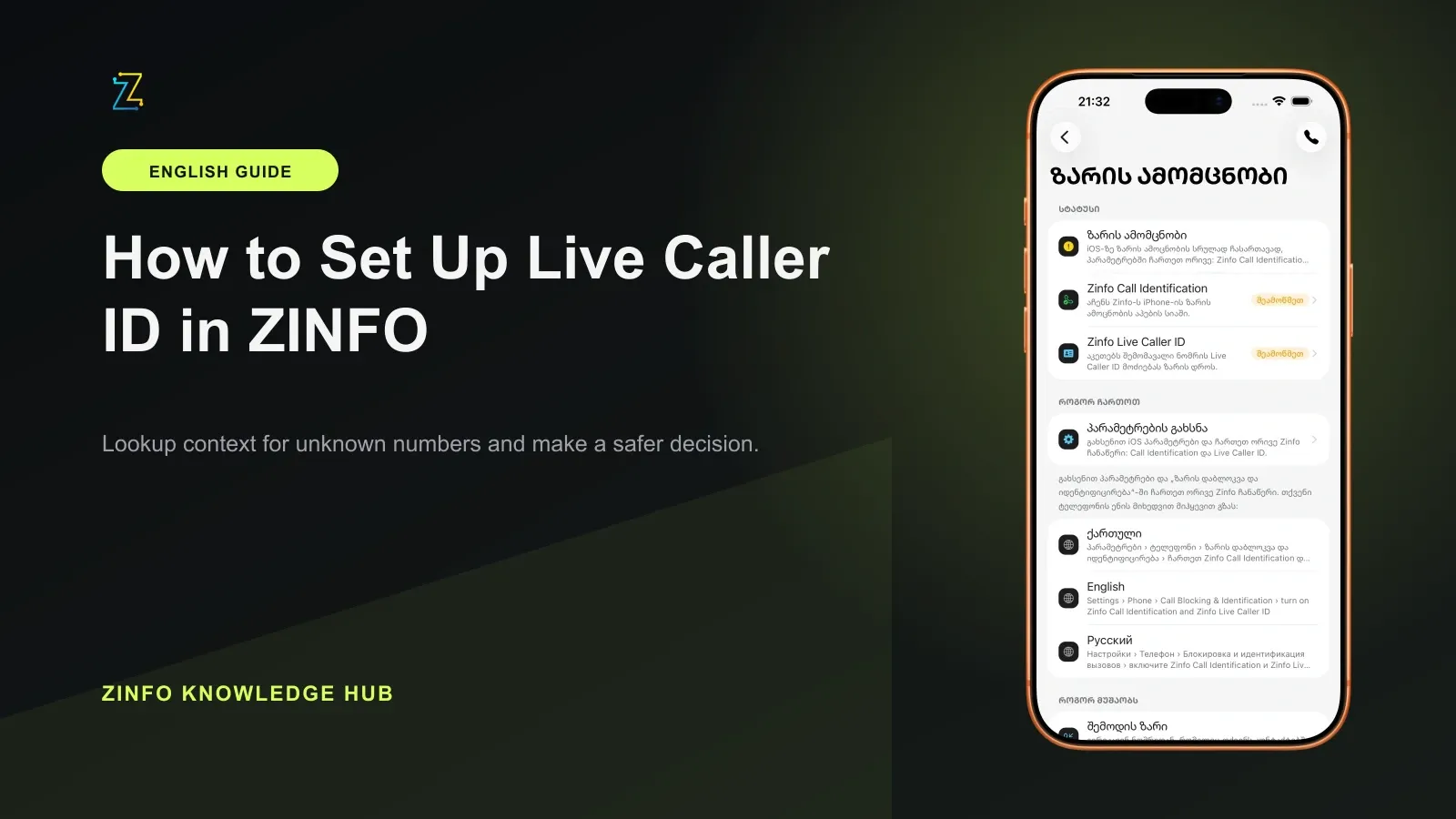
The verified ZINFO iPhone setup screen shows two separate entries: Zinfo Call Identification and Zinfo Live Caller ID. Review both. Turning on only one can leave the app asking you to complete setup.
- Open the caller identification screen in ZINFO while signed in.
- Use the option that opens Phone settings, or open Settings yourself.
- Follow Apple's current path: Settings > Apps > Phone > Call Blocking & Identification.
- Find the two ZINFO entries and enable both where they are available.
- Return to ZINFO and let it check the status again. Read each entry and the overall setup message.
Apple's iPhone guide distinguishes supported call identification apps from Business Call Identification. The business option uses information from Apple Business Connect or your carrier; switching it on is not the same action as enabling ZINFO.
Menu names and the presence of an Apps step can differ by system version or language. The illustration shows an iPhone setup screen, not a successful incoming-call result. Use the entries actually displayed on your phone and return to the app to confirm its current state.
3. On Android, follow the role and display prompts
Android's RoleManager documentation defines a call screening and caller ID role. Availability is device-dependent, and granting a role requires the user's choice. A system dialog opening is not evidence that you accepted it.
Start in ZINFO's caller identification screen. Follow the call screening prompt, select ZINFO when the system offers that choice, and review any accompanying Phone permission explanation. Return to ZINFO after the system dialog closes and check the permission card again.
The app's Android setup also distinguishes showing caller information over the call screen from showing a notification. Review the display and notification controls offered by your installed version. A granted screening role and a visible way to display the result are different parts of setup. Do not use an iPhone screenshot as an Android menu map.
For ordinary app permissions, Google's Android permission guide uses Settings > Apps > ZINFO > Permissions. The call screening role or special display access may open a separate system screen through ZINFO. Follow that screen rather than expecting every control in the ordinary permission list.
4. Read the status after returning to the app
Check the result of a settings change inside ZINFO. On iPhone, review the two individual entries and the overall message. On Android, review the role, the requested Phone permission, and the available display controls. Wording can change with the app language or version.
If the app still requests setup, note which entry remains incomplete. If it reports that online lookup is unavailable, first check that you are signed in and have a working connection. Opening system settings alone does not resolve account or connection problems.
An active setup means the app considers its requirements satisfied. It does not certify the information returned for a number or promise that every call will display a name. Manual phone number lookup is a separate path and is not proof that incoming-call identification is enabled.
5. Troubleshoot one missing step at a time
Use the visible symptom to choose the next check:
- A ZINFO entry is missing on iPhone: confirm the installed app and supported system version, open ZINFO while signed in, and revisit its setup screen. If the entry remains absent, record that symptom for support.
- Only one iPhone entry is enabled: return to Call Blocking & Identification and check the second entry.
- The Android screening card remains incomplete: revisit the system role choice and any accompanying Phone permission prompt, then return to ZINFO.
- The result has no visible display: review the overlay and notification controls offered by ZINFO, including any denied notification permission.
- The app is active but a name is missing: do not assume a permissions fault. A match may be unavailable for that number.
Change one relevant setting, return to the app, and record what changed. Avoid resetting the phone, deleting the app, or enabling unrelated access simply to see whether something works.
6. Keep caller identification separate from call handling
Apple's controls for screening or silencing unknown callers govern how a call reaches you. They are separate from enabling a supported caller identification app. If an expected call is quiet or goes to voicemail, inspect the relevant Phone setting before concluding that ZINFO setup failed.
If you choose to check an incoming call, arrange it with someone who has agreed to help. Observe the setup status and what the phone actually displays; do not publish their number or a screenshot containing personal information. A contact name already saved on the phone is not, by itself, proof that ZINFO supplied the result.
7. Review optional data choices and prepare a useful support report
Contact syncing is a separate data choice from turning on caller identification. Read the disclosure before granting contact access or starting a sync. ZINFO's privacy policy explains the data used by caller tools and warns that results can be incomplete, outdated, or incorrect.
If setup remains incomplete, prepare a short report with the device model, operating system, app version, exact status wording, and the step that failed. A redacted screenshot of the settings can help. Do not include passwords, sign-in codes, contact lists, or unrelated caller information.
Before finishing, confirm that you opened the signed-in app, checked the relevant system controls, returned to ZINFO, and read its current status. Keep the difference between readiness and a particular number match in mind when using the feature.
Method and limits
This guide was reviewed on 29 September 2026 against ZINFO's first-party feature and privacy information, its committed setup interface and status handling, the authentic iPhone setup capture, and current Apple and Android guidance. It is a setup checklist, not a claim that every device or incoming number has been tested. You can revisit the caller tools overview or explore the knowledge hub for related workflows.
Sources
- ZINFO caller and number tools · ZINFO · 2026-09-29
- ZINFO Privacy Policy · ZINFO · 2026-09-29
- Screen and block calls on iPhone · Apple Support · 2026-09-29
- RoleManager: call screening and caller ID role · Android Developers · 2026-09-29
- Change app permissions on your Android phone · Google Android Help · 2026-09-29