Finding a fuel station along a journey is different from finding the lowest price. A station can look close on a map yet require leaving your chosen road, driving in the opposite direction or visiting a different branch from the one you intended. Start with the route you actually plan to drive, then check a small number of suitable stops.
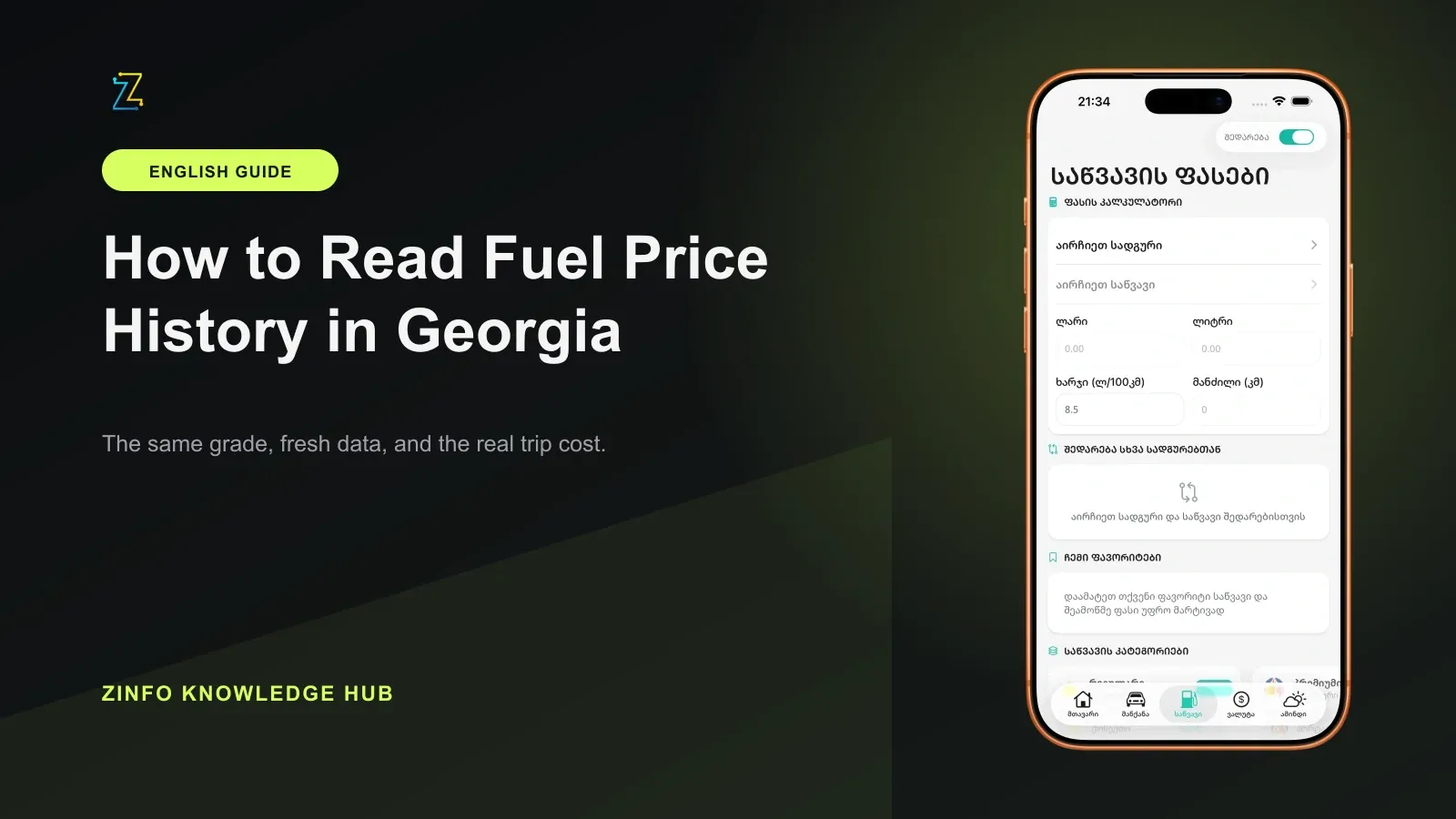
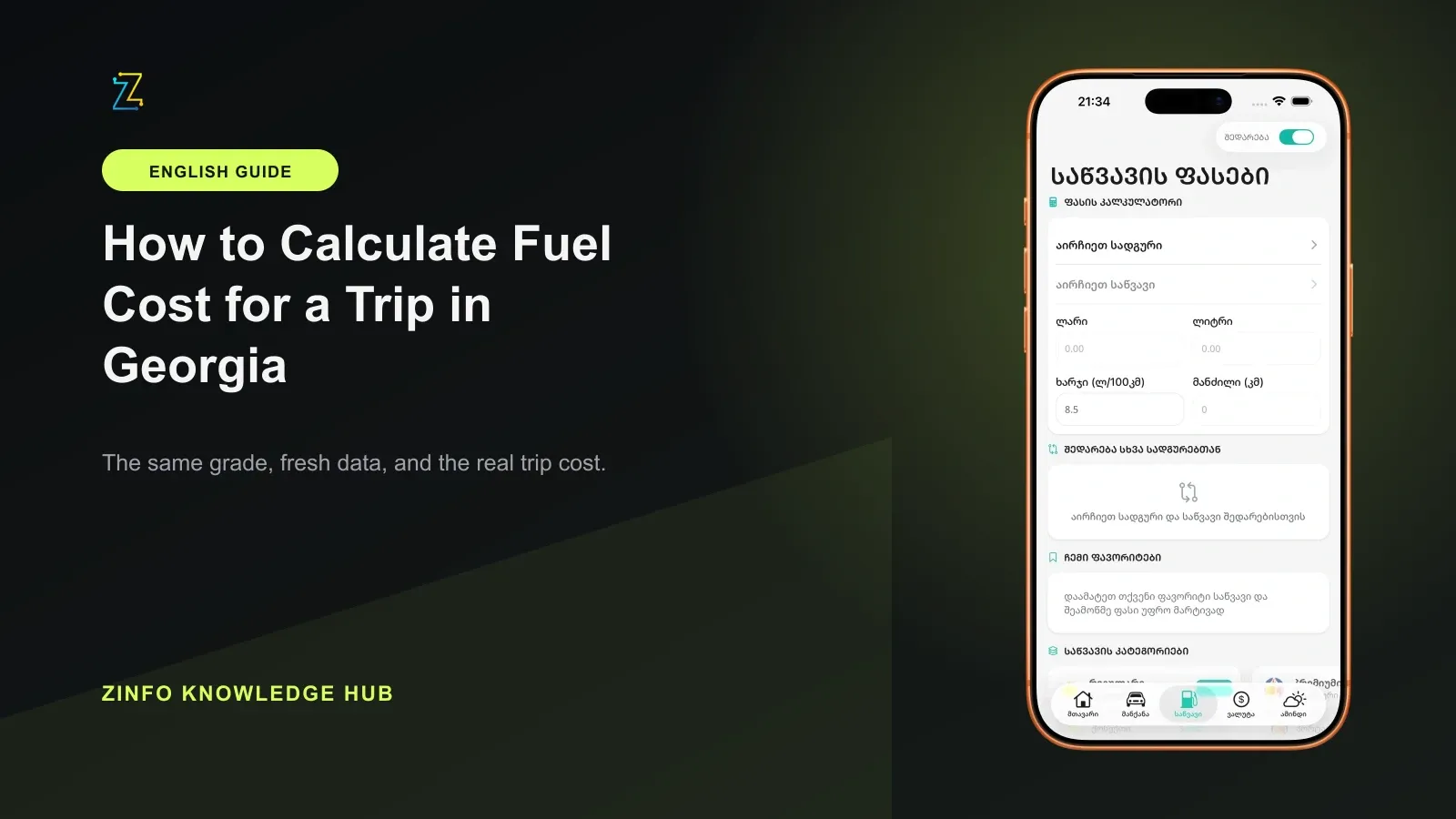
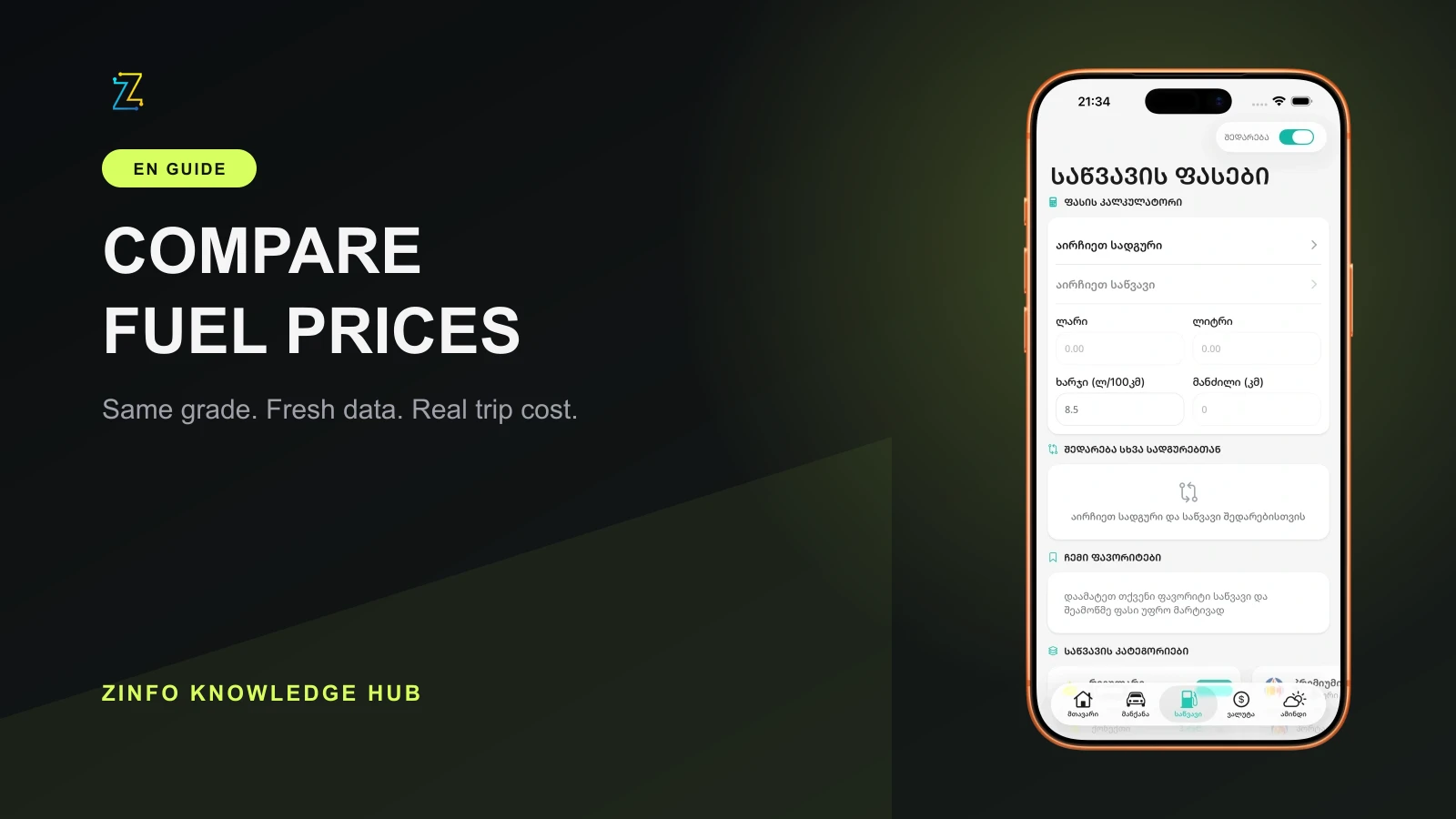
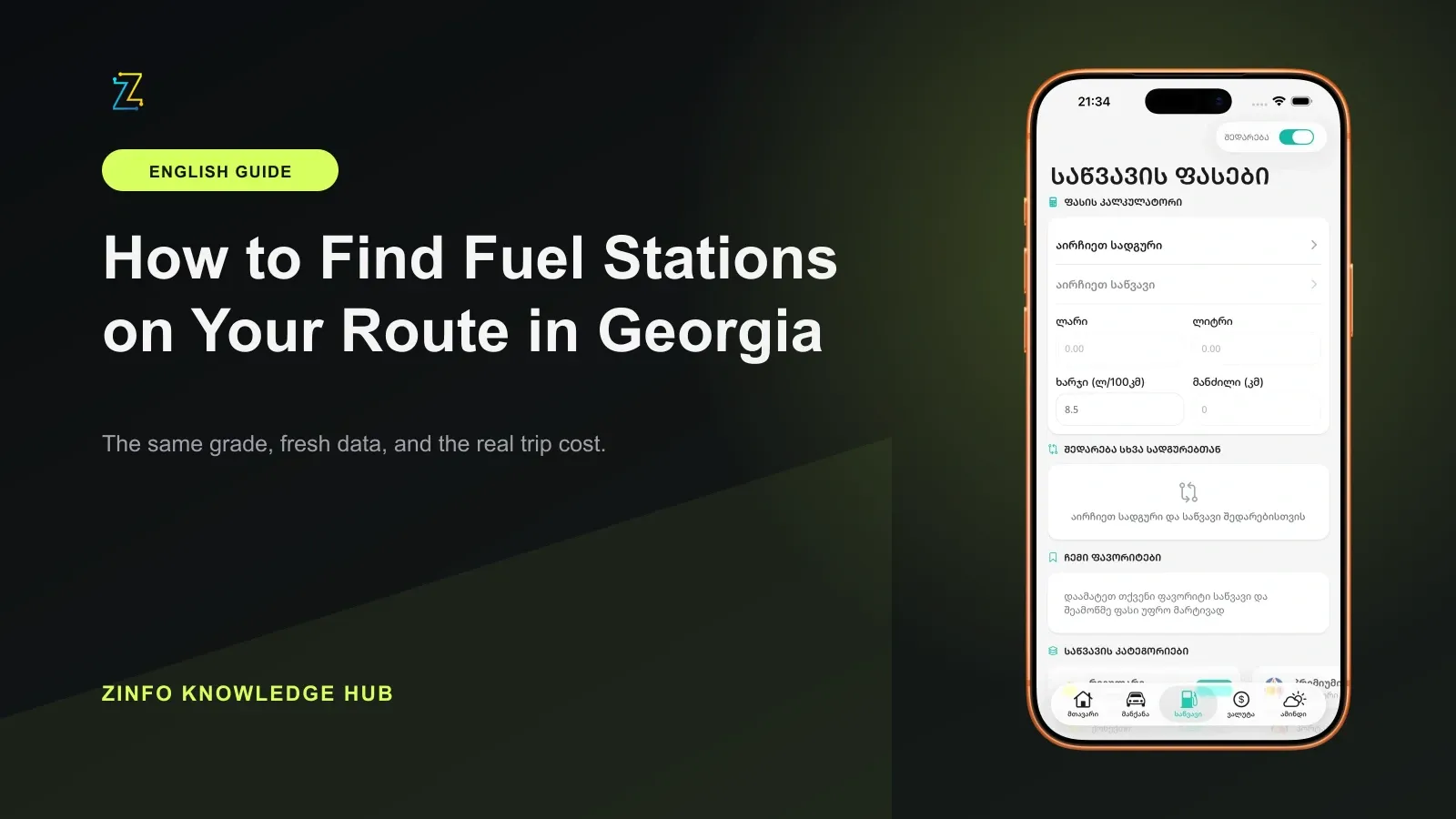
The ZINFO fuel and stations area supports browsing available networks, locations and fuel prices. This guide combines that information with official operator locators and a separate navigation check. It does not assume that ZINFO automatically searches a route corridor or chooses a stop for you.
1. Define the journey before searching
Set your starting point, destination and any fixed stops in your navigation app. Review the outbound and return journeys separately. A useful station on the outward trip may be inconvenient on the way back, even when both journeys use the same main road.
Break the journey into recognizable sections, such as the departure area, an intermediate town and the destination area. Search within the section where you want to stop instead of browsing every station in the country. For a trip with several appointments, use the route through those appointments, not just the direct line between the first and last address.
Keep the selected route as your reference. If navigation changes it later, revisit the fuel stop as well. Your shortlist belongs to that journey, not permanently to the city pair.
2. Shortlist exact locations, not just networks
Use ZINFO's supported location information to identify possible stops. Record the operator and exact address or branch name for each candidate. A network name alone is not enough when several branches are close together.
Cross-check the candidate on the operator's own site. The Rompetrol station locator provides map and list views, region and service filters, and station records. SOCAR's official station page provides a location map and filter control. These are useful verification sources, not a ranking of the networks or a promise that every listed detail is current.
Two clearly identified candidates are more useful than a long list of ambiguous pins. If an address and a map position appear inconsistent, do not silently choose one. Open the operator's record again or use its published contact channel to resolve the mismatch.
3. Check the drive to the entrance
Add the exact candidate as a stop in your navigation app and compare the resulting route with your original journey. Check the added distance and estimated time, including the drive back to the main route. A map's visual proximity is not the same thing as a short driving detour.
Look at which side of the road the station occupies and how the route reaches its entrance. Do not assume that two opposite-side branches are interchangeable. If navigation selects another location with a similar name, correct the destination before comparing it.
This is a planning check, not a guarantee about current access. Follow current road signs and restrictions rather than an old saved route. Review the plan before departure; a screenshot of a pin cannot establish that the entrance remains accessible.
4. Verify the details that matter for your stop
Separate four questions: is this the right location, does it list the required fuel, is the timing suitable, and are any essential services available? A network-wide product list does not by itself confirm stock at a particular branch. Likewise, a service filter helps narrow a search but does not prove that a service is operating at your arrival time.
Check the station record for the fuel, hours and services you need. If a detail is absent or unclear, treat it as unconfirmed. Contact the operator when your choice depends on it. Do not copy one branch's opening hours or amenities to another branch of the same network.
For prices, use the fuel comparison guide. Match the fuel product and applicable conditions, then confirm the final price at the selected station. The product screenshot in this article illustrates the interface; its figures are not live quotes for your journey.
5. Compare candidates using one short note
For each candidate, keep the same fields:
- Operator and exact branch or address
- Section of the journey and direction of travel
- Additional driving distance and estimated time
- Required fuel and any still-unconfirmed details
- Operator source and the time you checked it
This makes the decision easier to revisit. If one stop needs a substantial detour and another lies on the planned route, compare the whole stop rather than only the displayed price. The trip fuel-cost guide explains how to include additional driving in a fuel estimate without treating the result as a guaranteed bill.
Keep a backup in a useful part of the journey. Check its identity and access too; an unverified second pin is not a finished alternative. If the preferred stop is unsuitable, the backup should not require restarting your research from scratch.
6. Know what the shortlist cannot confirm
This method is an editorial planning checklist based on ZINFO's published feature description and official operator locators reviewed on September 22, 2026. It is not an on-road survey, a live inventory feed or a claim that the app includes every Georgian station. No particular branch, fuel price or journey time is recommended here.
Before leaving, recheck the route and the selected operator records. Keep unresolved details visible instead of turning them into assumptions. ZINFO can help bring supported fuel information together; the final choice still depends on the exact branch and the journey you are making.
For the next trip, reuse the checklist, not yesterday's unverified result. More practical planning guides are available in the ZINFO knowledge hub.
Sources
- Fuel and stations: supported ZINFO features · ZINFO · 2026-09-22
- Stations: map, list, region and service filters · Rompetrol Georgia · 2026-09-22
- Our stations: SOCAR Georgia location map · SOCAR Georgia Petroleum · 2026-09-22